Stepwise Checklists for Jira

A Definition of Done your team actually follows

Give every story, bug and release a clear checklist. Reuse your Definition of Done as a template, add it to new work automatically, and stop work from moving forward until the required steps are done.

  • Runs entirely on Atlassian
  • Light and dark theme
  • Company- and team-managed spaces
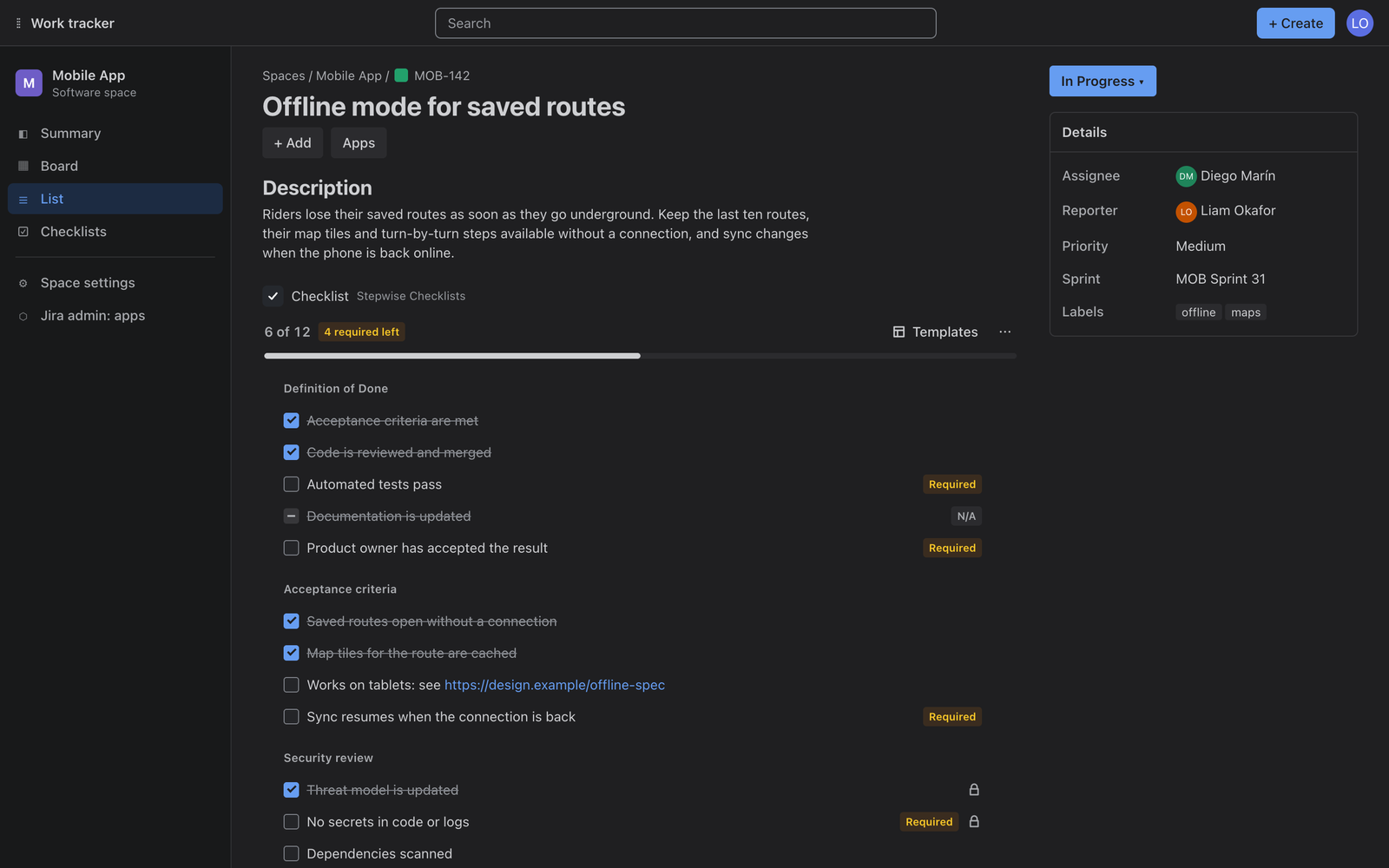
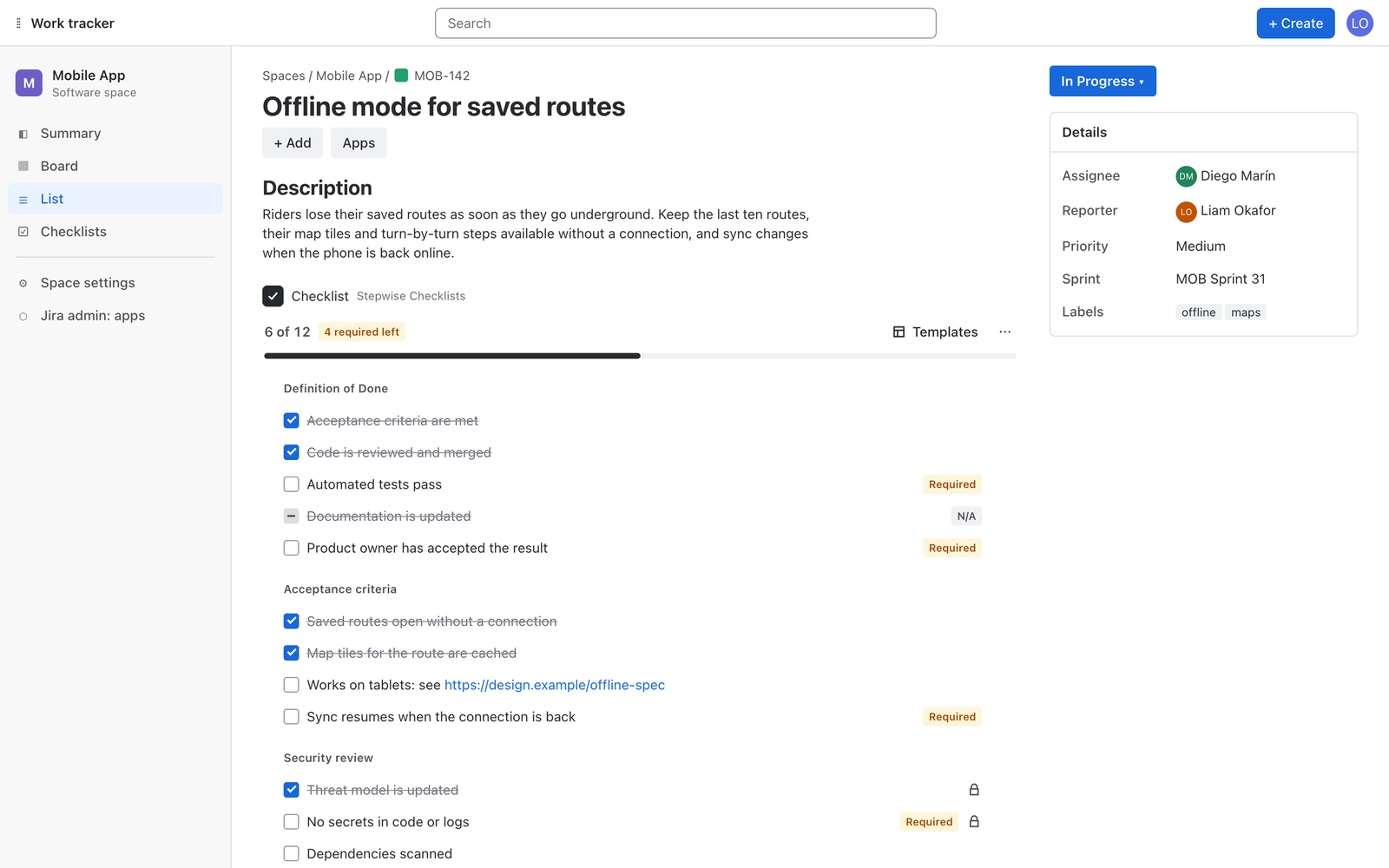
A Jira work item with the Stepwise checklist panel: 6 of 12 steps done, 4 required left, with sections for Definition of Done, Acceptance criteria and Security review.

The Stepwise line

Eleven apps. Each one removes one thing that slows your team down.

Find the line that sounds like your week. Every app is installed on its own, inside Jira or Confluence.

Stepwise Checklists turns “we agreed how to do this” into something the team actually follows.

Inside the work item

The checklist lives in the work item: sections, required steps, progress, and nothing to learn.

Added by itself

Choose the work types and new work starts with the right checklist. Nobody has to remember to add it.

Held by the workflow

A ready-made rule on a workflow transition keeps work where it is until the required steps are done.

What changes for your team

Six things your team gets from day one, and one you never have to think about.

Nothing gets forgotten

Every work item carries its own steps, and required ones are impossible to miss. Progress is visible at a glance.

  • Sections, required steps and “not applicable” for steps that do not fit this time
  • Paste a whole list to add many steps at once
  • Drag to reorder, rename in place, hide what is already done
Close-up of a checklist: ticked steps, two steps tagged Required, one marked N/A, and a progress bar showing 6 of 12.

One standard, no nagging

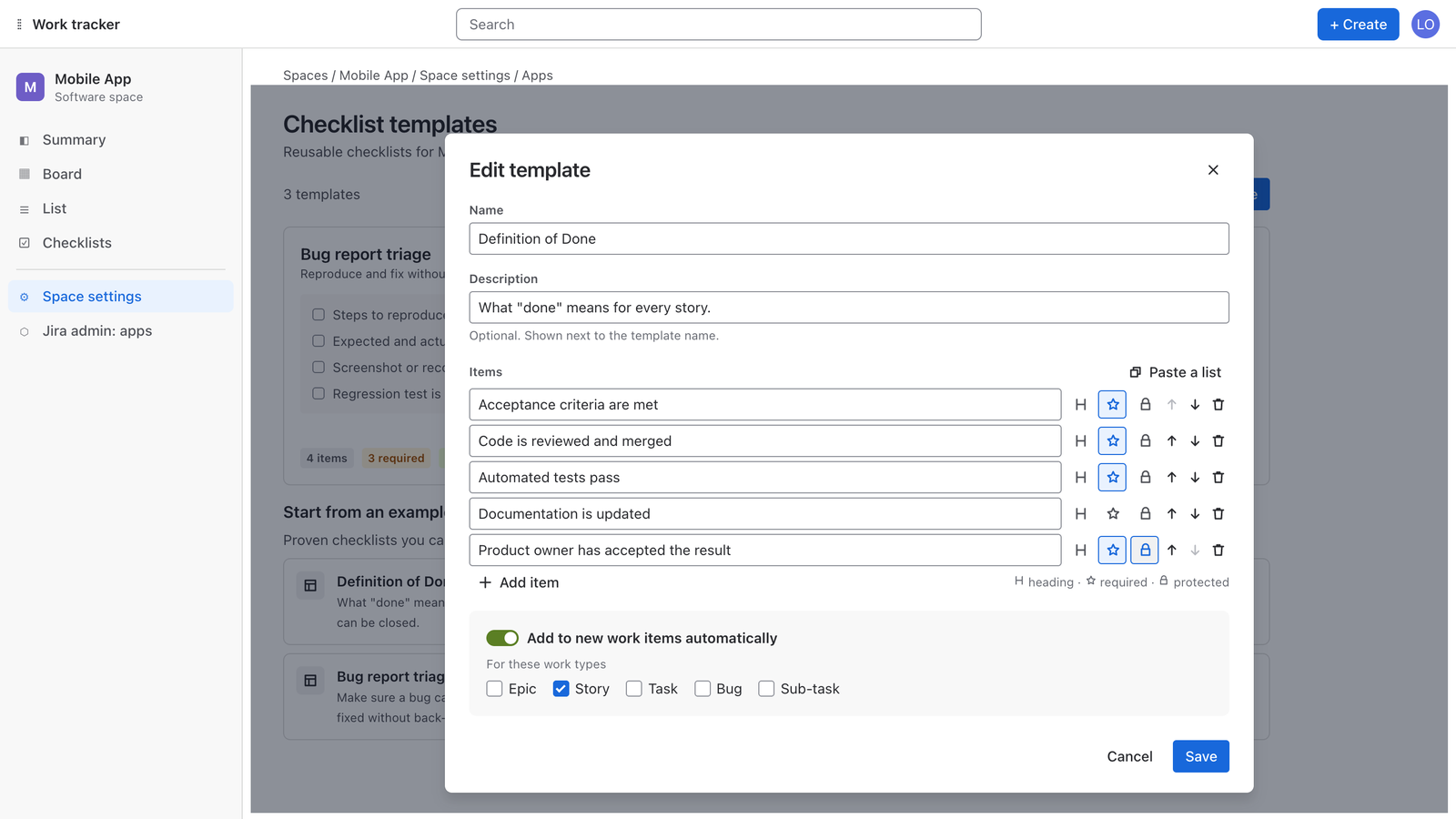
Write your Definition of Done, acceptance criteria or release steps once. Your standard is added to new work by itself, per work type.

  • One template per standard, kept per space
  • Pick the work types: every new story, bug or task starts with the right checklist
  • Anyone on the team can also add a template to a work item in one click
The template editor: a Definition of Done with five steps, three marked required, and the switch Add to new work items automatically turned on for the Story work type.

Done means done

Add a ready-made rule to any workflow transition and work cannot move on while required steps are open.

  • Two rules: required steps done, or the whole checklist complete
  • Works in company-managed and team-managed spaces
  • Work without a checklist passes: the rule only holds back work with open steps

Find what is stuck

Plain JQL fields and a space overview show unfinished checklists in seconds, on any board, filter, dashboard or automation.

  • checklistRequiredOpen > 0 AND status = "In Review"
  • checklistProgress < 100
  • checklistOpenItems = 0 AND checklistItems > 0
The Checklists page of a space: tiles for work with a checklist, in progress, waiting on required items and complete, above a table of work items with progress bars.

Feels like Jira

Native look in light and dark theme, keyboard friendly, fast to load. It follows each person’s Jira theme automatically.

  • Reorder with Alt + ↑ / ↓, rename with Enter
  • Checklist text in any language, including right-to-left scripts
  • People who can only view the work item see the checklist read-only
The checklist panel in Jira's light theme.
The same checklist panel in Jira's dark theme.

Set up in minutes

Start from six ready-made templates and adjust them to your team before saving. Three permissions to approve.

  • Definition of Done, Definition of Ready, Acceptance criteria
  • Bug report triage, Release checklist, Code review
  • Or save any checklist you already wrote as a template
The Checklist templates page of a space: three templates, two of them added to new bugs and stories automatically, and six ready-made examples to start from.

Roll out in four steps

Checklists, templates, workflow gate, JQL. Each step is useful on its own.

  1. Add a checklist to a work item

    Open any work item, choose Add app (or the apps button) and pick Checklist. The panel then stays on that work item for everyone.

  2. Create templates per space

    Space admins open Space settings → Apps → Checklist templates. Pick the work types, and new work starts with the right checklist.

  3. Gate the workflow

    In the workflow editor, select a transition, add a validator and choose one of the two Stepwise rules.

  4. Find work by checklist state

    Use checklistProgress, checklistRequiredOpen and two more fields in any JQL search, board filter or dashboard.

Runs entirely on Atlassian

Your data stays in Atlassian

Checklists are stored inside the work items themselves and templates in Atlassian-hosted app storage. Nothing is sent to any other server, and the data follows your Jira data residency.

Inside your work items

A checklist moves, archives and gets deleted together with its work item.

No external servers

No copies elsewhere, no analytics, no third parties.

Jira permissions apply

Whoever can edit the work item can edit its checklist. Whoever can only view it sees it read-only.

No names, no emails

The app keeps checklist text, states and completion times. It does not record who ticked what.

Three permissions, each with a reason

read:jira-work to read work items and their checklist, write:jira-work to save the checklist on a work item, storage:app to keep templates in Atlassian-hosted storage.

Premium

For teams that run the same standards across many spaces.

Shared library

One Definition of Done, security review or release checklist for every space, managed in one place.

Protected items

Mark template steps that nobody can rename or remove inside a work item.

Insights

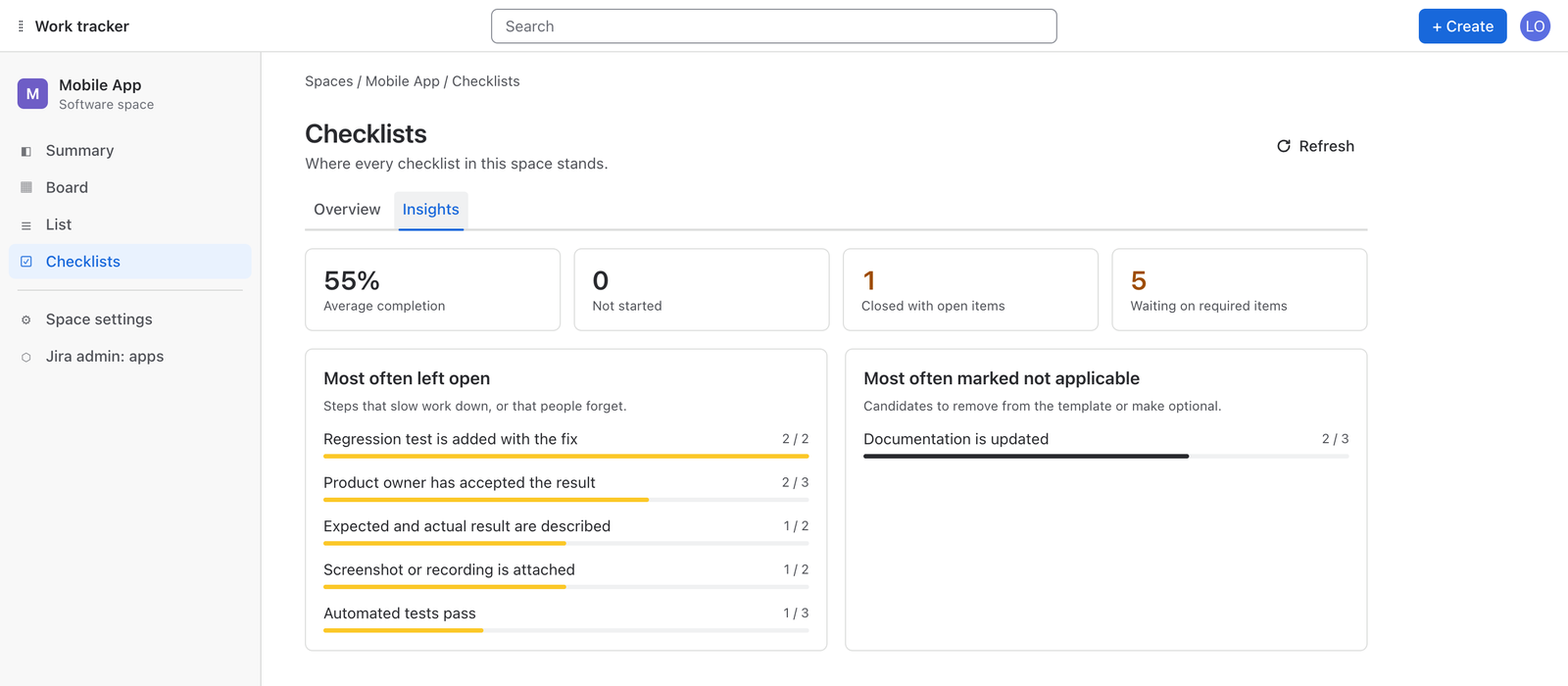
See which steps stay open, which get skipped, and which closed work still has open items, so you can fix the process, not chase people.

The Insights tab: average completion 55%, one work item closed with open items, and lists of the steps most often left open and most often marked not applicable.

Questions and answers

Where are checklists stored?

Inside the work item itself, as a Jira issue property. They move, archive and get deleted together with the work item. Templates are kept in Atlassian-hosted app storage. Nothing leaves Atlassian.

Who can edit a checklist?

Anyone who can edit the work item. People who can only view the work item see the checklist read-only.

Who can manage templates?

Space admins manage the templates of their space. Jira admins manage the shared library.

Can I stop a work item from being closed with open steps?

Yes. Add the validator “Stepwise: required checklist items are done” or “Stepwise: checklist is complete” to a workflow transition. It works in company-managed and team-managed spaces. The docs walk through both workflow editors.

How do I search by checklist state?

Use checklistProgress, checklistItems, checklistOpenItems and checklistRequiredOpen in JQL, for example checklistRequiredOpen > 0 AND status = "In Review".

Does it work with automation?

The checklist summary is a regular issue property, so automation flows can read it with JQL conditions. Adding a template when a work item is created is built in.

Is there a limit on checklist size?

150 steps per work item and 80 steps per template, which fits the size Jira allows for one property.

Which languages are supported?

The interface is in English. Checklist text can be in any language, including right-to-left scripts.

Does it support Jira’s dark theme?

Yes, it follows each person’s Jira theme automatically.

What happens to my data if I uninstall?

Templates are removed with the app. Checklists remain in the work items as issue properties; reinstalling the app shows them again.

Also for Confluence

The same checklist on every Confluence page

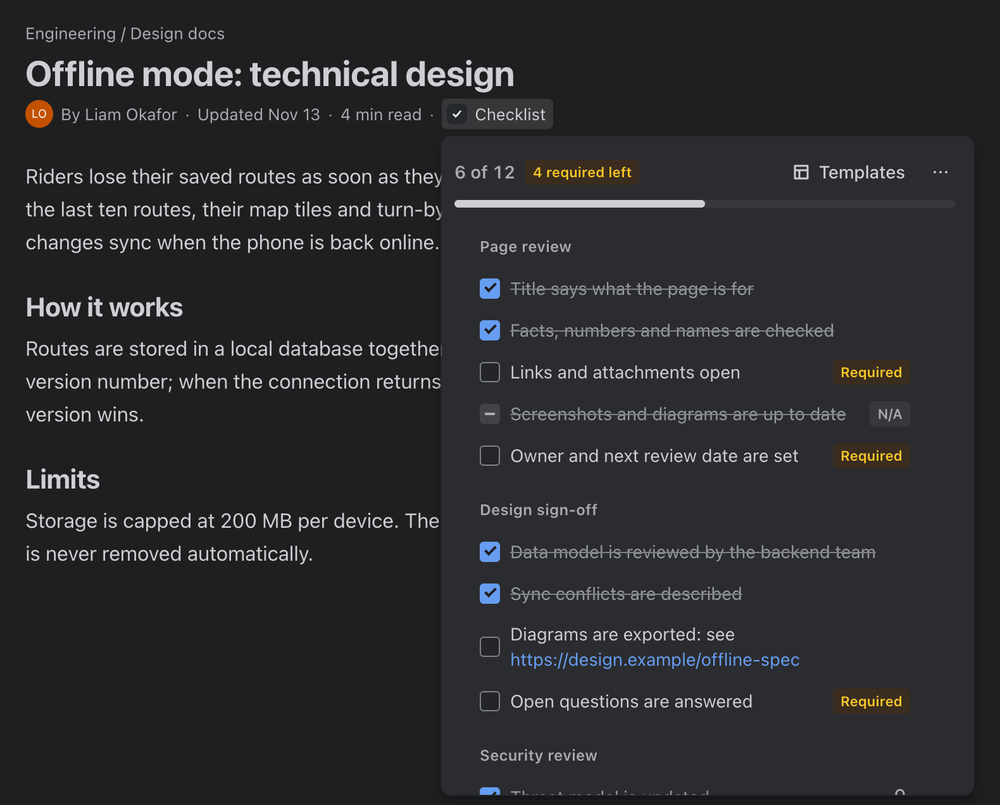
Stepwise Checklists for Confluence gives runbooks, release pages and reviews the same sections, required steps and templates, ticked without editing the page. It is a separate app with its own templates.

See Stepwise Checklists for Confluence
A Confluence page with the Stepwise checklist opened from Checklist in the page byline: 6 of 12 steps done, with sections for Page review and Design sign-off.

Give every work item a clear checklist

Install it, add your Definition of Done, and let new work start with it.