Documentation
Stepwise Approvals for Jira: user guide
Everything the app does, in the order you will meet it: the Approval panel, rules, the workflow validator, JQL, the Approvals page and log, and the details admins ask about.
On this page
Getting started
Stepwise Approvals is a Jira Cloud app. A Jira admin installs it from the Atlassian Marketplace and approves its permissions (they are explained under Permissions). After that, the Approval panel is available in work items, in company-managed and team-managed spaces.
It is a separate app from Stepwise Approvals for Confluence: each is installed on its own.
Open the Approval panel
- Open any work item.
- Find the Approval panel. It shows the state, the steps with their reviewers, and the history of the work item.
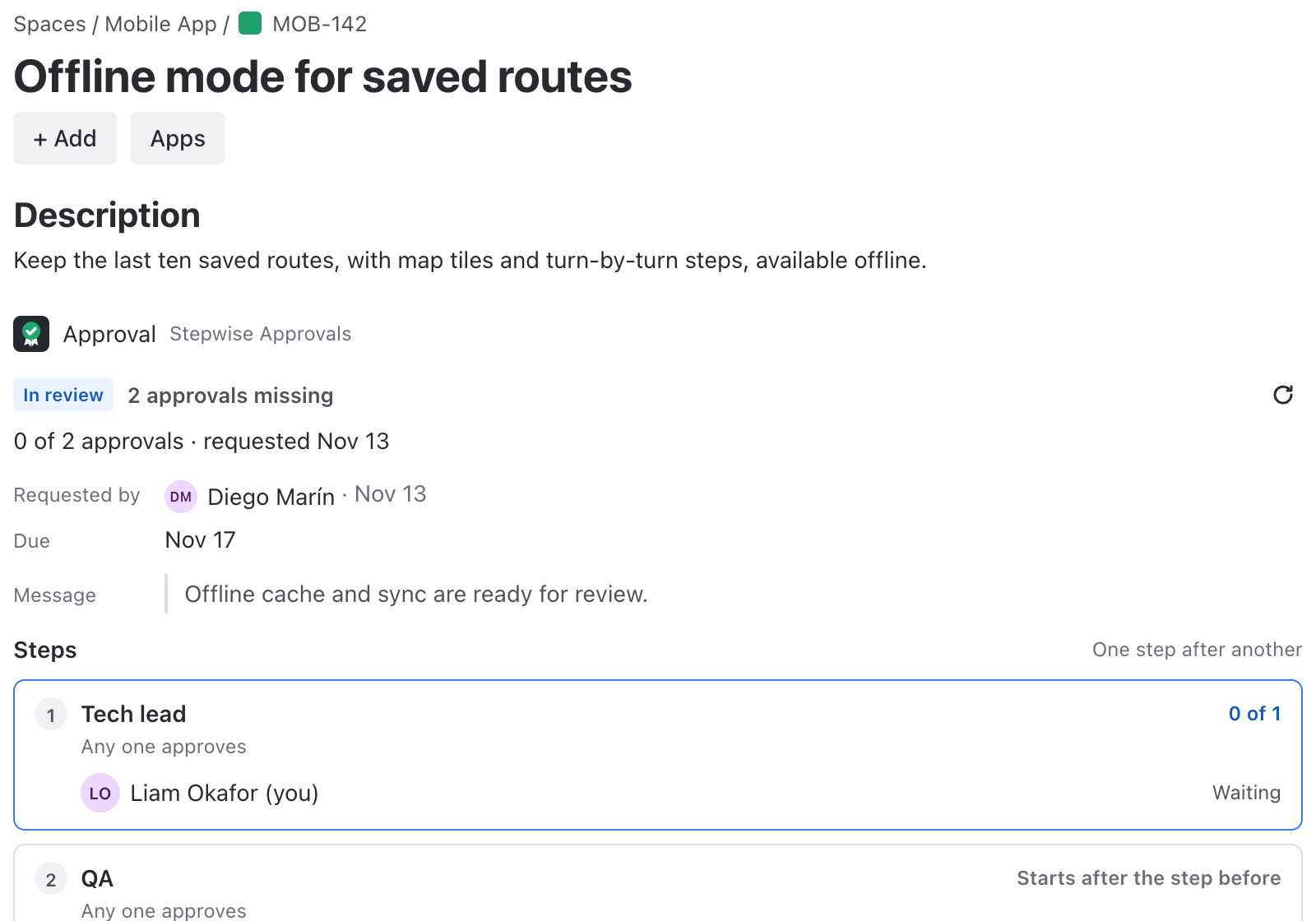
Jira admins also have a page for the app in Jira settings, under Apps → Stepwise Approvals.
How an approval works
- Approval
- One request for a work item: steps, order, who asked, a message and an optional due date. A work item has one current approval at a time. Earlier ones stay in the history, and the round number counts up: 1, 2, 3.
- Step
- A name, the reviewers (people and groups) and a quorum. A request has up to five steps. Steps run in sequence (the next step opens when the previous one is approved) or in parallel.
- Quorum
- Any one: one approval is enough. N: N approvals from different people. All: every named person and at least one member of every named group. One person counts once in a step.
- Vote
- Approve or Request changes, with an optional comment of up to 500 characters. A member of a group votes for the group.
- Four eyes
- The person who requested an approval cannot approve their own request.
| State | What it means |
|---|---|
| Pending | A request is open and reviewers are answering. |
| Approved | Every step reached its quorum. |
| Changes requested | A reviewer asked for changes. Request again when they are made. |
| Cancelled | The request was cancelled by the person who made it or by a space admin. |
| None | Nothing has been requested. |
Request and review
Request an approval
- Open the Approval panel of the work item.
- Choose Request approval.
- Pick a rule of the space, or build the request yourself: steps, reviewers (search for people and groups), quorum and order.
- Add a message and, if you like, a due date, and send it.
Reviewers get an email notification through Jira.
Review
- Open the work item. If you are a reviewer, the panel offers Approve and Request changes.
- Choose one. For Request changes, write what has to change.
When every step reaches its quorum the work item is Approved. A single Request changes ends the round as Changes requested.
Remind and cancel
- Remind reviewers sends a Jira email notification to the people and groups of the open step, from you, at most once an hour.
- The person who requested the approval, or a space admin, can Cancel request.
Rules by work type and status
Space admins manage rules in the Space settings. A rule starts an approval by itself. A space can have up to 30 rules.
- Open the space settings and the approval rules.
- Choose New rule and name it.
- Pick the work types. Leave it empty for all work types.
- Choose When to start: when a work item is created, when it enters one or more statuses, or both.
- Set the steps, the order and the quorum.
- Save.
- When a matching event happens and no approval is running, the rule starts one. The person behind the event counts as the requester.
- If several rules match, the first by name is used and the others are skipped, so there is only one approval at a time.
Block a transition until approved
The app adds a validator to Jira’s workflow editors: Stepwise: approval is complete. A validator sits on a transition, for example the one into Done, and stops the transition while its condition is not met.
| Situation | Message people see |
|---|---|
| The approval is complete | The transition is allowed. |
| Approvals are still missing | Approval required: 2 approvals are missing. |
| A reviewer asked for changes | Approval required: changes were requested. |
| Nothing has been requested | Approval required: no approval has been requested yet. Open the Approval panel to request one. |
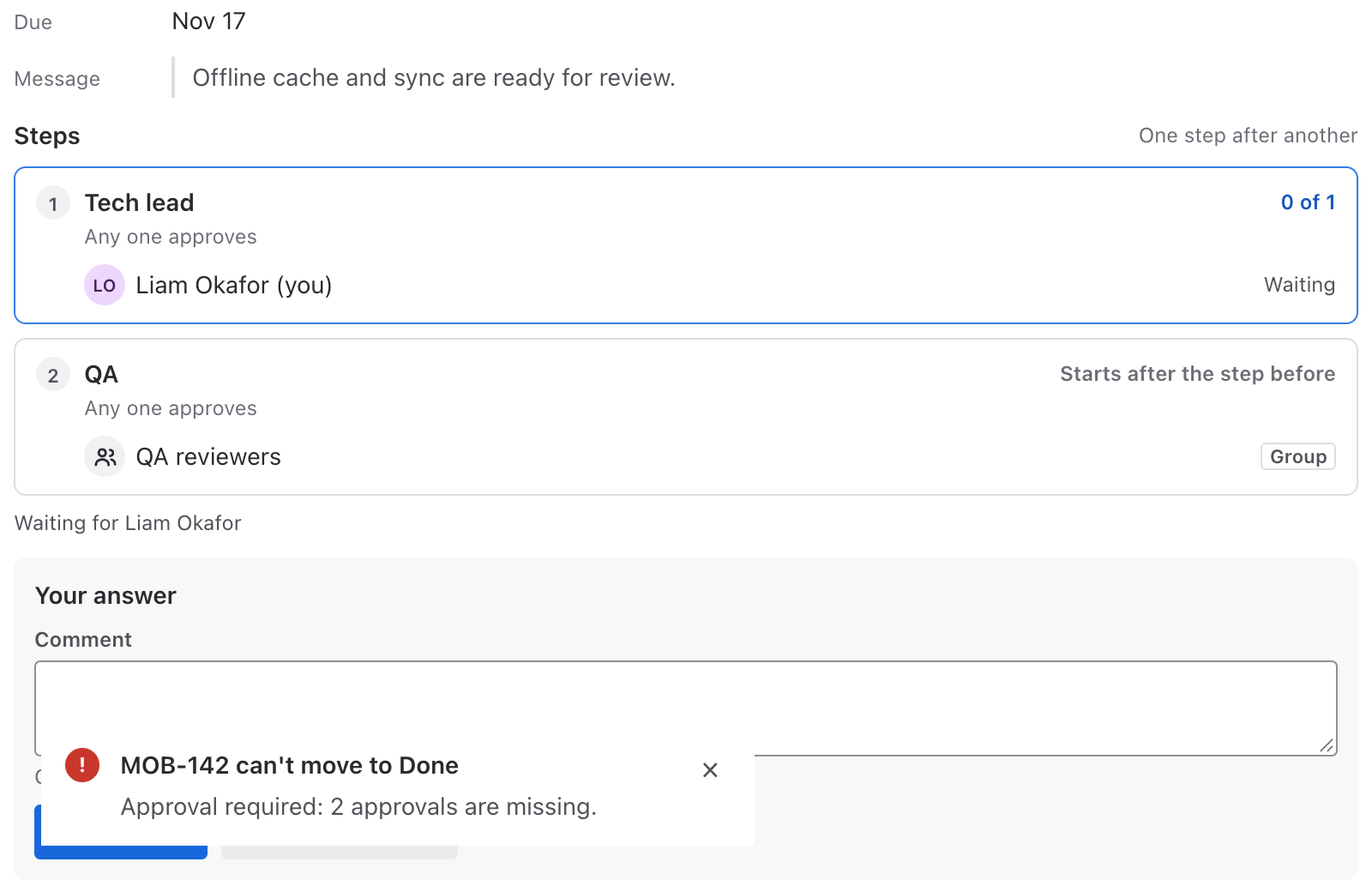
Add the validator to a transition
- Open the workflow of the work type you want to guard, in the space settings or in Jira’s workflow editor.
- Select the transition, for example In review → Done.
- Open the transition’s validators and choose to add one.
- Pick Stepwise: approval is complete.
- Publish or save the workflow.
Jira renames buttons in its workflow editors from time to time, so the labels on your site can differ slightly. The order stays the same: workflow, transition, add a validator, pick the Stepwise validator, publish.
The validator reads the approval from the app’s own storage, which cannot be changed through Jira’s REST API. If the approval cannot be read, the transition does not pass.
Combine the gate with rules: the rule starts the approval when the work item enters a status, the validator makes sure nothing moves on without it.
JQL reference
The app keeps the state of each approval in a work item property that Jira indexes, so you can search it in filters, boards, dashboards and automation. The property holds only the state, the number of missing approvals and the round number, never people.
| Field | Value | Meaning |
|---|---|---|
stepwiseApproval | Text, for example "pending" | The state of the current approval |
stepwiseApprovalsMissing | Number | How many approvals are still missing |
Examples
| Find | JQL |
|---|---|
| Work items in review | stepwiseApproval = "pending" |
| Work items that still need approvals | stepwiseApprovalsMissing > 0 |
| One space, still missing approvals | project = REL and stepwiseApprovalsMissing > 0 |
| Releases waiting for approval | issuetype = Release and stepwiseApproval = "pending" |
The property is a mirror for search. Decisions, such as the validator, are never taken from it.
The Approvals page and the log
Every space has an Approvals page. Everyone who can see the space can open it. It has two tabs.
Work items tab
The work items of the space that have an approval, with their state and how many approvals are missing.
Log tab
Every event of the space, newest first: the request, each vote, the decision, cancellations and rule changes. Each entry shows the time, the work item and its title, the round, who did it and the details such as step, decision and comment. The history of a single work item is also in its Approval panel.
Entries are linked into a chain with SHA-256, so the log of each space is tamper-evident. Checking the chain is part of Premium.
Permissions
Who can do what
The app follows Jira.
| Action | Who |
|---|---|
| See the Approval panel and the history | Anyone who can see the work item |
| Approve or request changes | A reviewer named in the step, who can see the work item. The person who requested cannot approve their own request. |
| Cancel a request | The person who requested it, or a space admin |
| Manage the rules of a space | Space admins, in Space settings |
| Add the validator to a workflow | Whoever may edit that workflow in Jira: Jira admins for company-managed spaces, space admins for team-managed spaces |
| Open the Approvals page of a space | Anyone who can see the space |
What the app is allowed to do
When the app is installed, Jira asks the admin to approve five permissions:
| Permission | Why the app needs it |
|---|---|
read:jira-work | To show the Approval panel, to fill the Approvals page of a space, and to ask Jira what the current person may see |
write:jira-work | To write the approval state and counters for JQL, and to send the email notification to reviewers |
read:jira-user | To search for people and groups when you pick reviewers, to show names at the moment they are displayed, and to know which groups a voting person belongs to |
storage:app | To keep approvals, rules and the log in Atlassian-hosted app storage |
report:personal-data | To report stored account IDs to Atlassian every week, as the Marketplace requires |
Limits
| Item | Limit |
|---|---|
| Steps in one approval | 5 |
| Reviewers (people and groups) in one step | 20 |
| Rules per space | 30 |
| Comment of a vote, message of a request | 500 characters each |
| Name of a rule / name of a step | 80 / 60 characters |
Data and personal data
- Approvals, rules and the log are stored in Atlassian-hosted app storage (Forge storage), separately for your site.
- The only thing written to a work item is the property for search: the state, the number of missing approvals and the round number. No names or account IDs.
- Nothing is sent to any other server. There are no external services, no analytics and no third parties. The data follows your Jira data residency.
- To know who signed, the app stores the Atlassian account IDs of requesters and reviewers. In approvals, rules and the log a random reference stands in for the ID. It does not store names or emails: names are shown as Atlassian returns them at the moment of display.
- Account IDs are reported to Atlassian every week. When Atlassian tells the app that an account has been closed, the account ID is erased. The person’s earlier actions stay in the log as “Former user” and the chain still verifies.
More detail: Security and data. Legal wording: Privacy policy.
Troubleshooting
- A transition is blocked and I do not know why
- Read the message: it says whether approvals are missing, changes were requested or nothing has been requested. Open the Approval panel to act.
- I cannot approve my own request
- That is by design: the person who requested cannot approve. Ask another reviewer.
- A rule did not start an approval
- An approval was already running, or another rule matched first by name. Only one approval runs at a time.
- JQL does not find a work item
- Jira updates its search index shortly after a change. Run the search again in a moment.
- Reviewers did not get an email
- Check the notification settings of your Jira site and of the reviewer. Press Remind reviewers to send it again.
Not available yet
These are not in the app today. We list them so that you know what not to look for yet. There are no dates attached.
- Reminders that are sent automatically
- Re-review dates and read confirmation (they are in Stepwise Approvals for Confluence, where pages have versions)
Missing something else? Tell us.