Stepwise Approvals for Confluence

Page approval with proof: who said yes, to which version

Request approval on any Confluence page. Named reviewers sign off in the order you set, a quorum signs the exact version, and editing the page resets the sign-off. Everyone sees where the page stands.

  • Runs entirely on Atlassian
  • Reviewers need no edit rights
  • Approval log for auditors
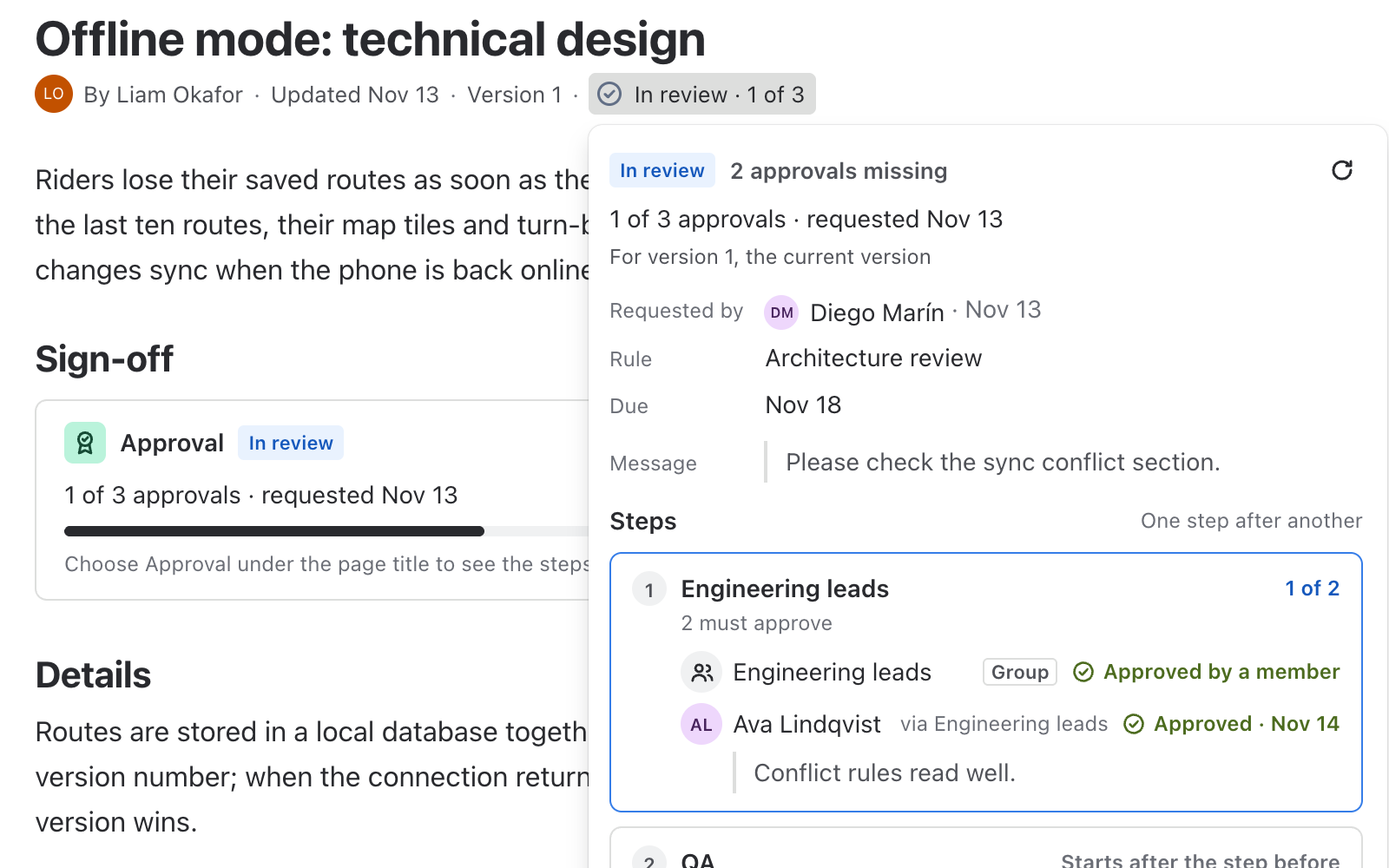
A Confluence page with the badge In review, 1 of 3 under the title and the approval popup open: two approvals missing, step 1 Engineering leads with one of two approved, step 2 QA waiting for its turn.

A page is only a draft until somebody says yes. Stepwise Approvals makes that yes visible, versioned and provable.

Status under the title

A live badge on every page: In review, Approved, Changes requested, Changed since approval or Review due. Open it for steps, reviewers and history.

Sign-off that cannot go stale

An approval signs one page version. Edit the page and the badge says so, so nobody relies on a document that has moved on.

Proof when it matters

Every request, vote and decision lands in the approval log of the space, ready for the auditor.

What changes for your team

Eight things your team gets from day one, and one you never have to think about.

Reviewers, steps and quorum

Name people or whole groups, put steps in sequence or in parallel, and decide how many have to agree.

  • Reviewers can be people or groups, and they do not need permission to edit the page
  • Up to five steps, in sequence or in parallel
  • Quorum per step: any one, N of them, or all
  • Approve or request changes, with a comment
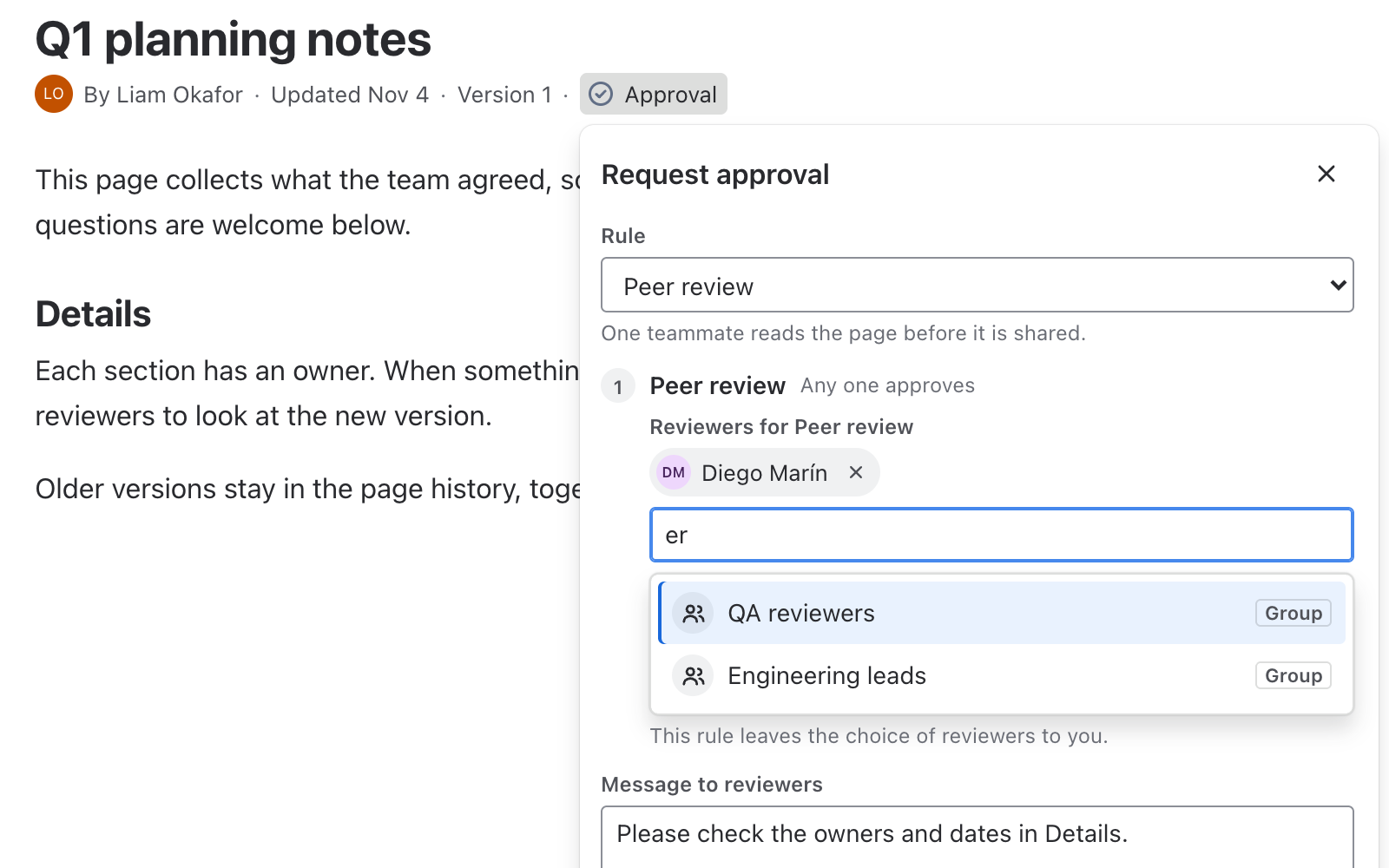
The Request approval form on a page: the rule Peer review, one reviewer added, and a search that lists the groups QA reviewers and Engineering leads.

An approval signs a version

The sign-off belongs to the version the reviewers saw. Change the page and everybody knows.

  • Approved shows the signed version
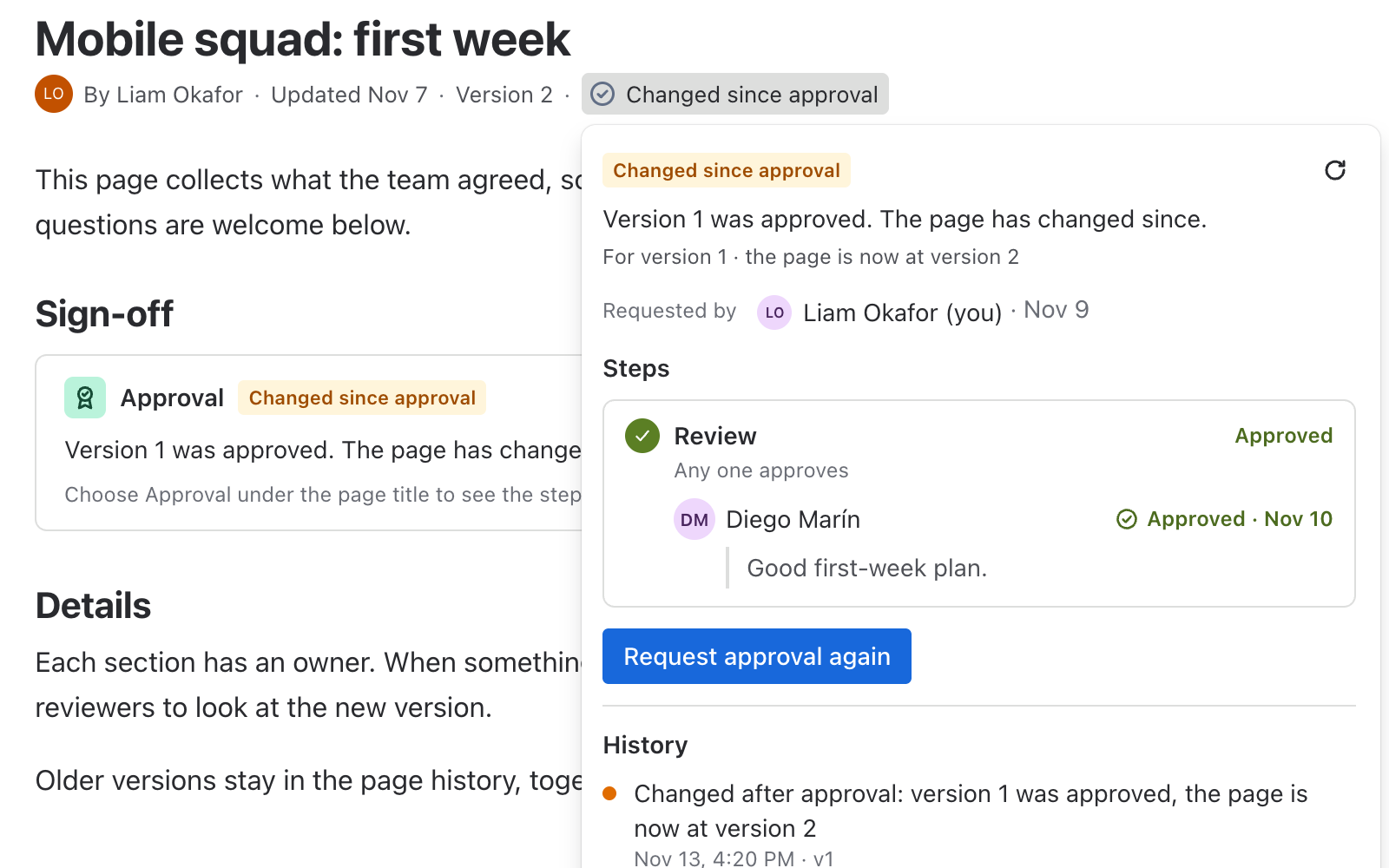
  • Edit an approved page and the badge becomes Changed since approval
  • Edit a page in review and the review continues on the new version; earlier votes stay in the history but do not count
  • A vote on a version that has just changed is not accepted, so nobody signs what they did not read
A page badge that reads Changed since approval: version 1 was approved, the page is now at version 2, with a Request approval again button and the history of the approval below.

Approvals that start themselves

Write your process once per space. Use a preset or build your own, and ask for approval automatically on every new page.

  • Presets: Peer review, Two approvers, Legal then management, Policy sign-off
  • Up to 30 rules per space, each with steps, order, quorum and re-review
  • Switch on “Request approval automatically for new pages in this space”
  • Rules, not browsers, decide what a request contains
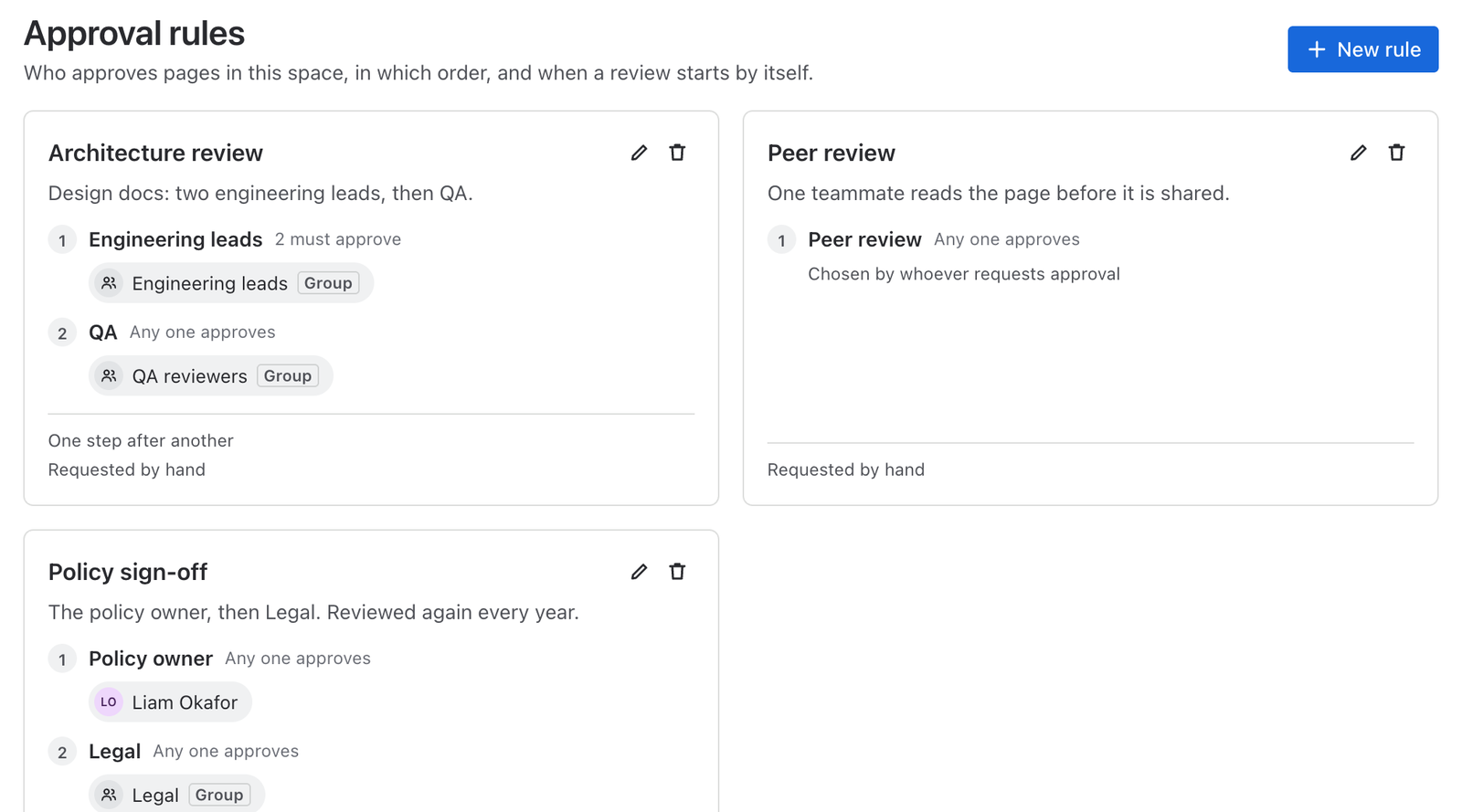
Approval rules of a space: Architecture review with two steps, Peer review chosen by whoever requests, and Policy sign-off with a 12-month re-review and read confirmation.

Documents that stay current

Policies and procedures age. Ask for a fresh review every N months and confirm that people read the approved version.

  • Re-review every N months: the badge turns to Review due and one click starts a new round with the same steps
  • Read confirmation: people tick “I have read this version” on the approved version
  • Editors and space admins see who has read it; everybody else sees the number
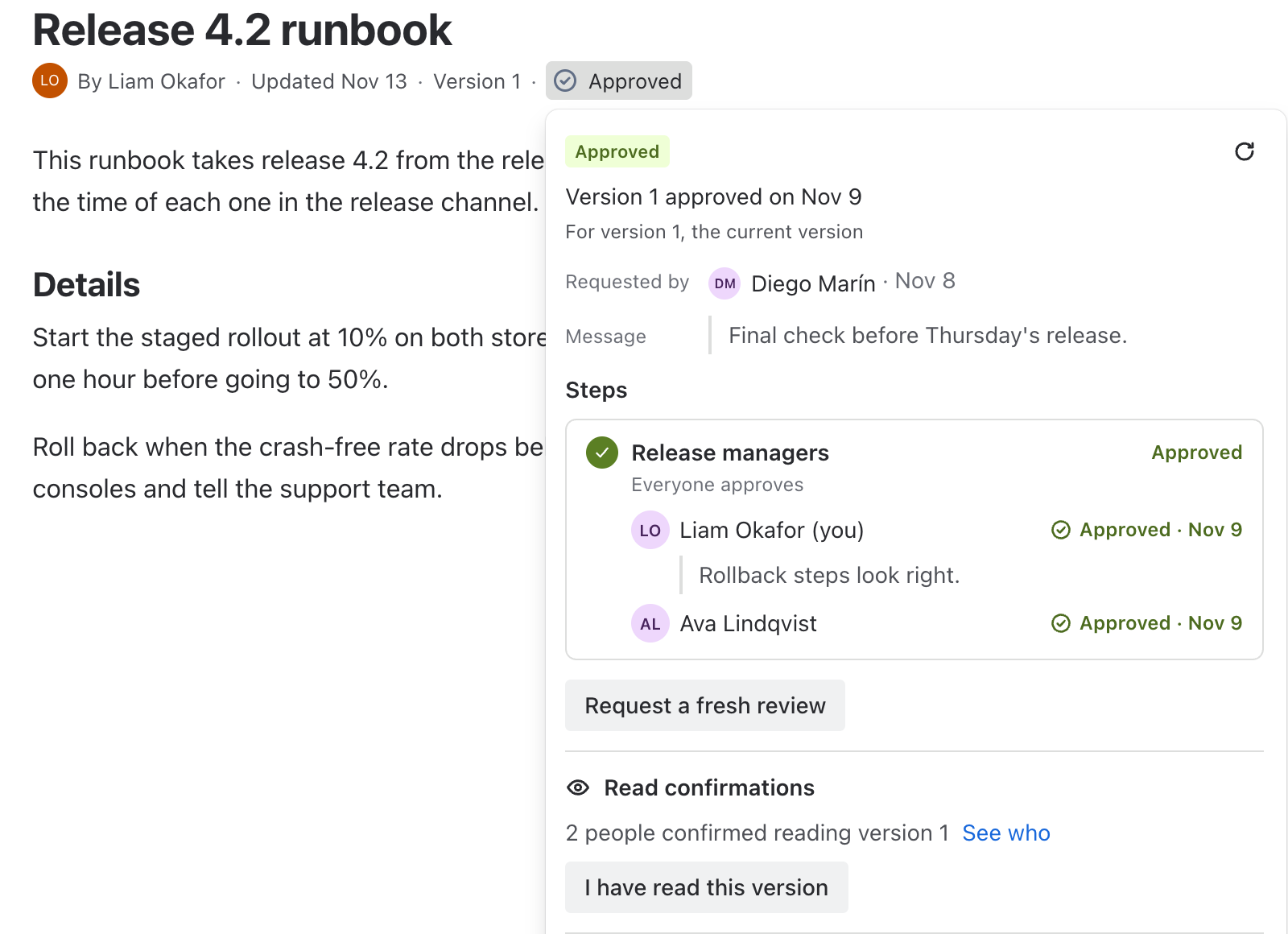
An approved page: the Release managers step approved by two people, a Request a fresh review button, and Read confirmations showing that 2 people confirmed reading version 1.

Reviewers hear about it

A request notifies reviewers by a page comment that mentions them, posted in the requester’s name. Remind the ones who have not answered with one button.

  • People are mentioned by name, groups by text
  • Remind reviewers on demand, at most once an hour
  • The person who requested cannot approve their own request: four eyes, always

See every page of the space

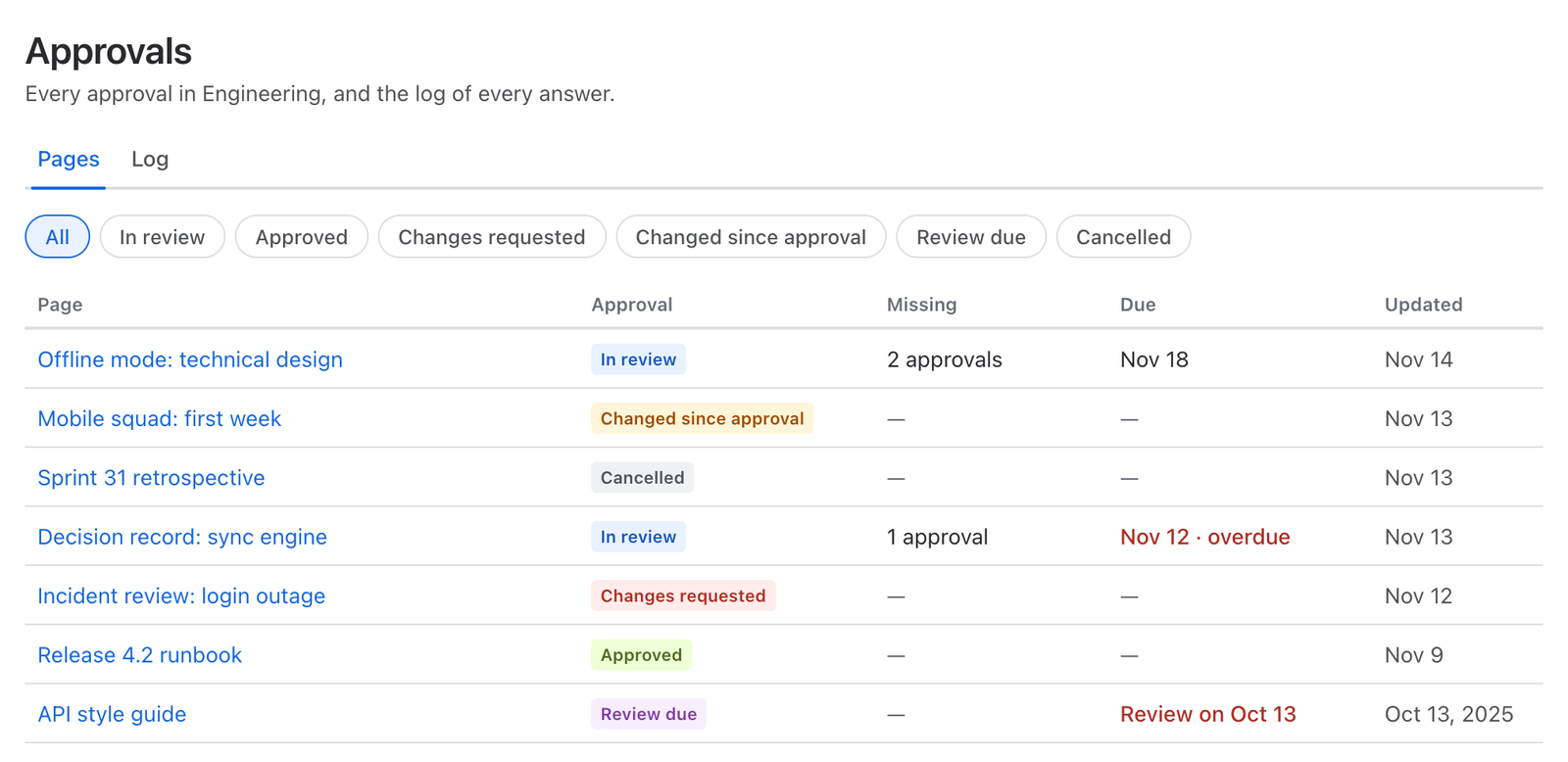
The Approvals page of each space lists pages by state, how many approvals are still missing and what is due. The Log tab shows every event, newest first.

  • Filter by In review, Approved, Changes requested, Changed since approval, Review due or Cancelled
  • Missing approvals and due dates next to each page
  • Everyone who can see the space can open it, and sees the pages they may view
  • The status macro puts the badge inside the page body
The Approvals page of a space: filters for In review, Approved, Changes requested, Changed since approval, Review due and Cancelled, above a table of pages with missing approvals and due dates.

Roll out in four steps

Request, review, rules, space overview. Each step is useful on its own.

  1. Open the approval of a page

    On any page, choose Approval under the page title. Reviewers and requesters use the same popup.

  2. Request approval

    Pick a space rule or build a custom request: steps, reviewers, quorum, order, re-review and a message.

  3. Reviewers decide

    Reviewers open the page, then Approve or Request changes. The badge follows every vote.

  4. Set the rules once

    Space admins save presets as rules and can request approval automatically for every new page.

Runs entirely on Atlassian

Your data stays in Atlassian

Approvals are kept in Atlassian-hosted app storage and nothing is sent to any other server. The app stores the account IDs of requesters and reviewers, so it knows who signed, and never names or emails. Nothing about people is written into your pages.

Nothing about people in your pages

The app does not write a page property at all. The badge is computed from the approval record, so it cannot be changed by editing page properties.

No external servers

No copies elsewhere, no analytics, no third parties.

Confluence permissions apply

Requesting needs permission to edit the page. Reviewers only need to see it.

Account IDs only, reported to Atlassian

IDs are reported to Atlassian every week and erased when an account is closed. The actions stay in the log as “Former user”.

Premium

For teams that have to prove what was approved, by whom and when.

Tamper-evident log

Every entry is chained to the one before it, so any edit or deletion shows up.

Verify with one click

Verify the log of a space: either “Verified, no changes”, or the first entry that does not match.

Audit report export

Download the log of a space for a period as CSV, or the full report of one page.

Questions and answers

How is this different from the approvals built into Confluence?

Stepwise Approvals adds reviewers who do not need edit rights, groups and quorum, sign-off of a specific page version, re-review dates, read confirmation, space rules with automatic requests, and a tamper-evident log.

Does an approval stay valid when the page changes?

No. An approval signs one page version. If the page is edited, the badge shows Changed since approval and a new request takes one click. While a review is running, edits restart the review on the new version.

Who can approve a page?

The reviewers named in the request, people or groups, as long as they can see the page. The person who requested the approval cannot approve their own request.

How do reviewers find out?

By a page comment that mentions them, posted in the requester’s name. Remind reviewers mentions only those who have not answered yet.

Can I require several approvers?

Yes. Use up to five steps in sequence or in parallel, with a quorum for each step: any one, N of them, or all.

What about periodic review of policies?

Set re-review every N months in the rule. When the date arrives the badge shows Review due, and Request re-review starts a new approval with the same steps.

Does it work on blog posts?

Approvals are available on pages. Blog posts and live docs are not covered yet.

Where is the data stored?

In Atlassian-hosted app storage. Nothing leaves Atlassian, and the app writes no properties about people to your pages. See the security page.

Does it work with the Jira version?

They are separate apps with the same approval experience. Each is installed on its own. See Stepwise Approvals for Jira.

Does it support dark theme?

Yes, it follows each person’s Confluence theme automatically.

Also for Jira

The same sign-off on every Jira work item

Stepwise Approvals for Jira brings steps, quorum and the approval log to releases, changes and purchases, and can hold a workflow transition until the work item is approved. It is a separate app.

See Stepwise Approvals for Jira
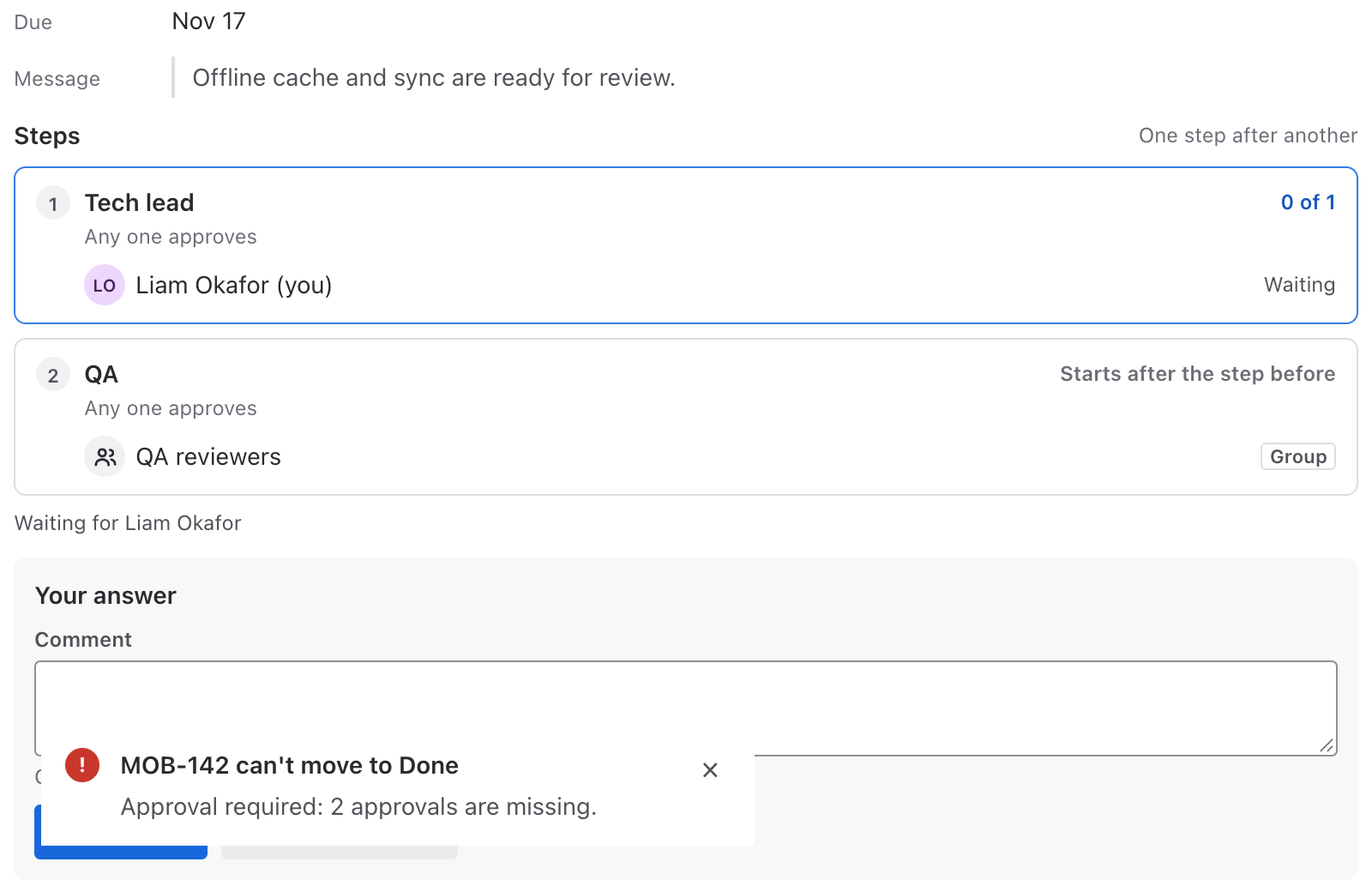
A Jira work item with two approval steps and the message MOB-142 can’t move to Done: Approval required, 2 approvals are missing.

Give every important page a clear yes

Install it, pick a preset, and request your first approval in a minute.