Documentation
Stepwise Approvals for Confluence: user guide
Everything the app does, in the order you will meet it: request an approval, review, rules, the Approvals page and log, and the details admins ask about.
On this page
- Getting started
- How an approval works
- Request an approval
- Review a page
- States and what an edit does
- Re-review and read confirmation
- The Approval status macro
- Space rules and presets
- The Approvals page and the log
- Premium features
- Permissions
- Limits
- Data and personal data
- Troubleshooting
- Not available yet
Getting started
Stepwise Approvals is a Confluence Cloud app. A Confluence admin installs it from the Atlassian Marketplace and approves its permissions (they are explained under Permissions). After that there is nothing to switch on: the app is available on every page, in every space.
It is a separate app from Stepwise Approvals for Jira: each is installed on its own.
Open the approval of a page
- Open any page.
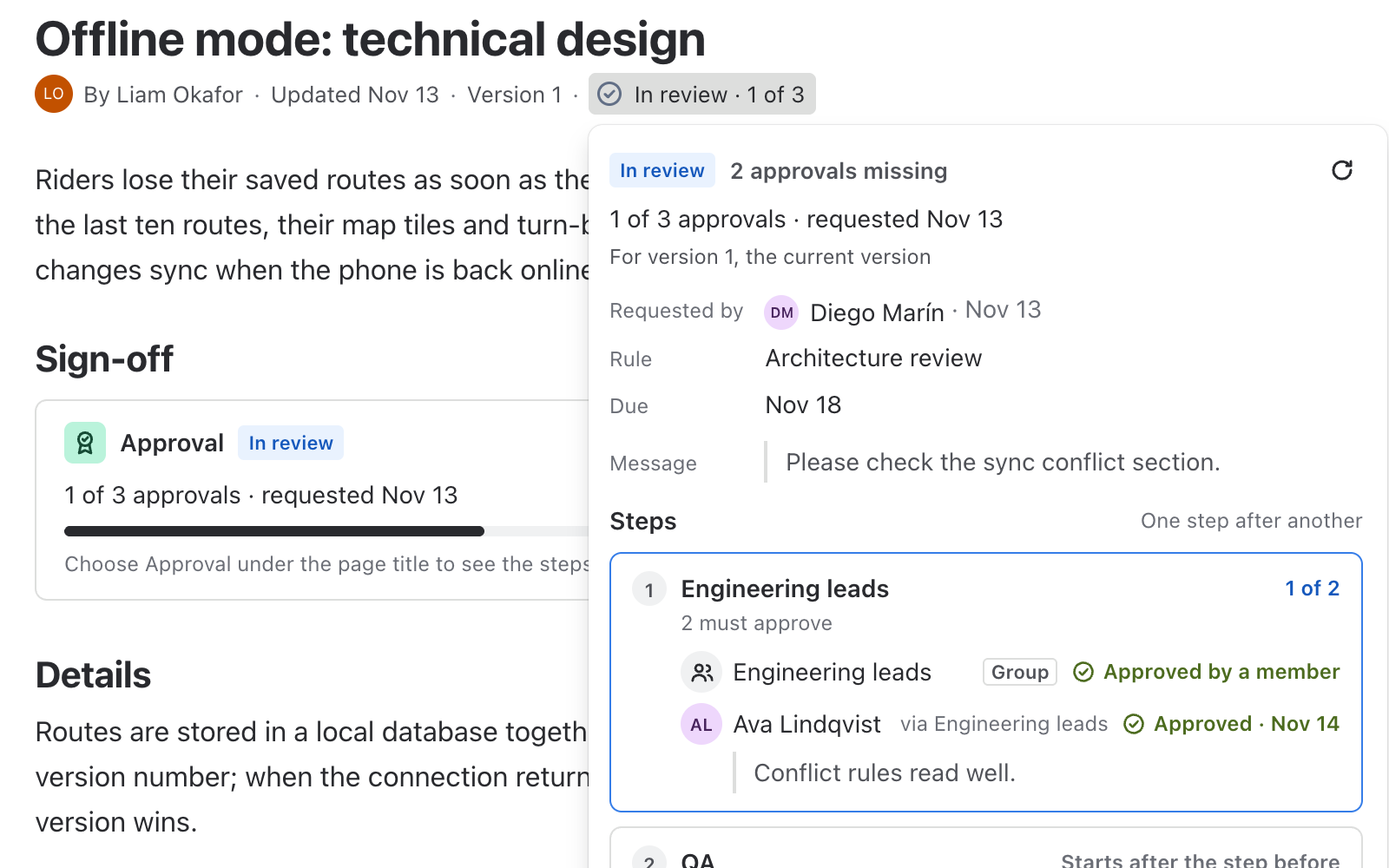
- Choose Approval under the page title, in the line with the author and the date.
- The approval of the page opens in a popup.
The button is also the badge: its title shows where the page stands. It reads Approval when nothing has been requested, In review · 1 of 3 while reviewers answer, Approved, Changes requested, Changed since approval or Review due.
Approvals are available on pages. On blog posts and live docs the popup says “Approvals are available on pages.”
Confluence admins also have a page for the app in Confluence settings, under Stepwise Approvals.
How an approval works
- Approval
- One request for a page: steps, order, the page version, who asked, a message and an optional due date. A page has one current approval at a time. Earlier ones stay in the log.
- Step
- A name, the reviewers (people and groups) and a quorum. A request has up to five steps. Steps run in sequence (the next step opens when the previous one is approved) or in parallel.
- Quorum
- Any one: one approval is enough. N: N approvals from different people. All: every named person and at least one member of every named group. One person counts once in a step.
- Vote
- Approve or Request changes, with an optional comment of up to 500 characters. A vote belongs to the page version the reviewer saw. A member of a group votes for the group.
- Four eyes
- The person who requested an approval cannot approve their own request.
Request an approval
- Open the approval of the page and choose Request approval.
- Pick a rule of the space, or choose Custom.
- Set the steps: a name, the reviewers (search for people and groups) and the quorum. With a rule, steps that have no reviewers are filled in by you; everything else comes from the rule.
- Choose the order: in sequence or in parallel.
- Optionally set a re-review period and switch on read confirmation (see Re-review and read confirmation).
- Add a message and, if you like, a due date.
- Leave Notify reviewers on and choose Request approval.
With Notify reviewers on, the app posts a comment on the page in your name. The comment mentions the reviewers who are people, so Confluence notifies them; groups are named in the text.
Remind reviewers
Choose Remind reviewers to post a comment that mentions the people who have not answered yet. Reminders are sent by you, on demand, at most once an hour.
Cancel a request
The person who requested the approval, or a space admin, can choose Cancel request. The approval becomes Cancelled and stays in the log.
Review a page
- Open the page. If you are a reviewer, the badge reads In review.
- Choose the badge to open the popup. It shows the version under review and the version you are viewing, for example “Version 7 · you are viewing version 7”.
- Choose Approve, or Request changes and write what has to change.
- Reviewers need to see the page. They do not need permission to edit it.
- If the page changes while you read it, your vote is not accepted and the popup shows the new version, so nobody signs what they did not read.
- When every step reaches its quorum, the approval becomes Approved and the signed version is recorded.
- A single Request changes ends the round as Changes requested. Anyone who can request approvals can ask again.
The popup lists every step with its reviewers and who has answered, and the history of the page from the log, all rounds included.
States and what an edit does
| State | What it means |
|---|---|
| Approval | Nothing has been requested yet. |
| In review · 1 of 3 | A request is open. The numbers show how many approvals have been given of those needed. |
| Approved | Every step reached its quorum. The approved version is recorded. |
| Changes requested | A reviewer asked for changes. |
| Changed since approval | The page was edited after it was approved. The approved version stays on record. |
| Review due | The re-review date has arrived. |
| Cancelled | The request was cancelled. It is kept in the log. |
What an edit does:
- While in review: the review continues on the new version. Earlier votes stay in the history but no longer count, and the log notes a restart.
- After approval: the badge becomes Changed since approval. Request approval again to sign the new version.
The badge is computed from the app’s own record every time the page is shown. It is not a page property that somebody could edit.
Re-review and read confirmation
Re-review
A rule or a request can say Re-review every N months (from 1 to 36; 0 switches it off). After approval the due date is the approval date plus N calendar months. When it arrives the badge shows Review due. Choose Request re-review to start a new round with the same steps.
Read confirmation
With read confirmation on, everyone who can see the page can choose I have read this version once the current version is approved. One confirmation counts per person and version, and it is written to the log.
- People who can edit the page, and space admins, see who has confirmed. Everybody else sees the number.
- Up to 5,000 confirmations are kept per version.
The Approval status macro
The Approval status macro shows the approval state inside the page body, so readers see it without looking under the title.
- Edit the page.
- Type
/Approval statuswhere it should appear and insert the macro. - Publish the page.
Inserting or removing the macro is a normal page edit.
Space rules and presets
Space admins manage rules in the Space settings. A rule is a template for approvals in that space: a name, a description, steps, order, re-review and read confirmation. A space can have up to 30 rules.
Presets
- Peer review
- Two approvers
- Legal then management
- Policy sign-off, with re-review every 12 months and read confirmation
A preset opens in the editor so you can adjust it before saving.
Request approval automatically
Switch on Request approval automatically for new pages in this space in a rule. Every step of that rule must then have reviewers. A new page starts with an approval request, and the author of the page counts as the requester.
It applies to pages created after you switch it on. Existing pages are not changed.
The Approvals page and the log
Every space has an Approvals page in its navigation. Everyone who can see the space can open it. It has two tabs.
Pages tab
- The pages of the space that have an approval, with their state, how many approvals are still missing and the due date.
- Filter by In review, Approved, Changes requested, Changed since approval, Review due or Cancelled.
- You see the pages you may view. Pages that are restricted for you are not listed.
Log tab
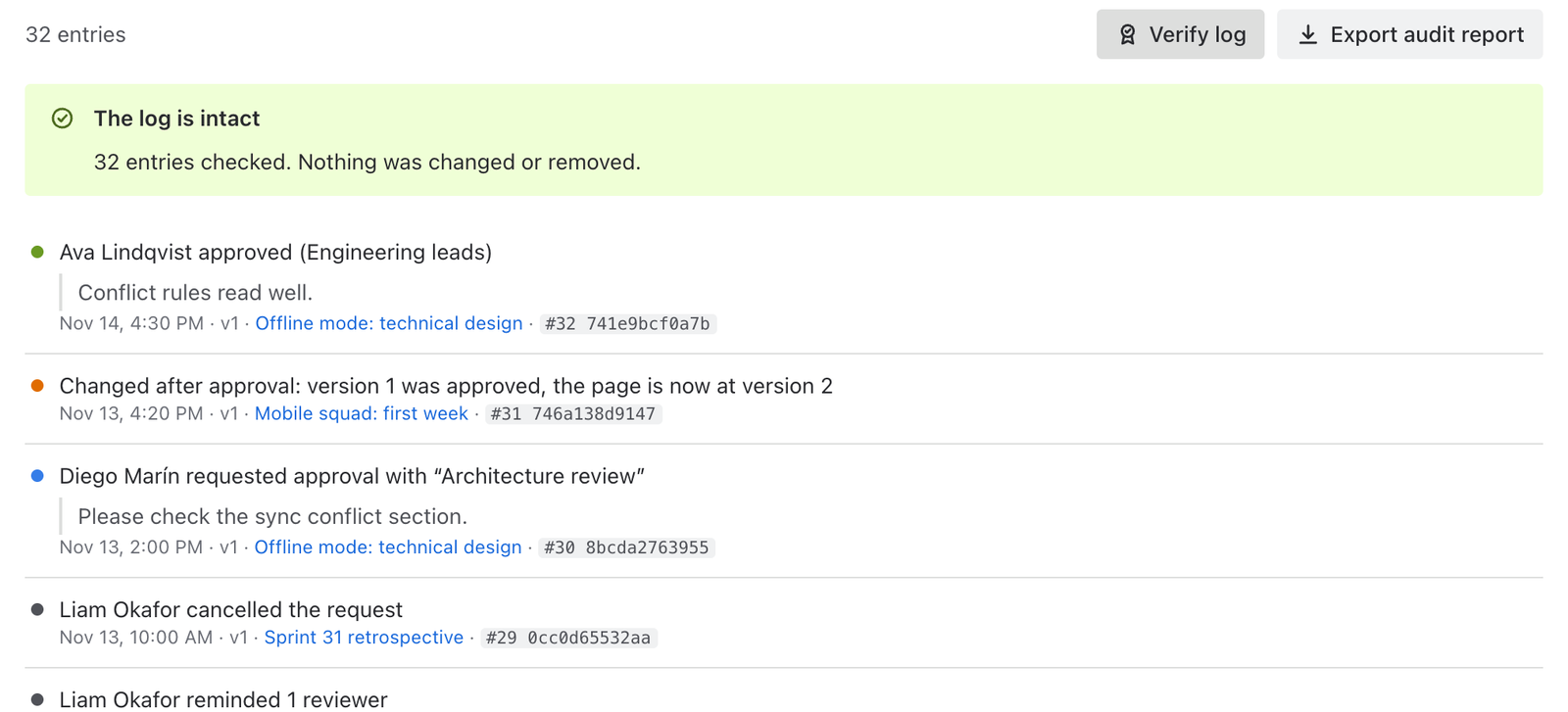
Every event of the space, newest first: the request, each vote, the decision, cancellations, restarts after an edit, changes after approval, reminders, read confirmations and rule changes. Each entry shows the time, the page and its title, the version, the round, who did it and the details such as step, decision and comment.
Entries are linked into a chain with SHA-256, so the log of each space is tamper-evident. Hashes are visible next to the entries. Checking the chain is part of Premium.
Premium features
Premium is the Advanced edition of Stepwise Approvals on the Atlassian Marketplace. It is for teams that have to prove what was approved, by whom and when.
Verify the log
Verification recalculates the chain of a space: every hash, every link to the entry before it, no gaps in the numbering and a match with the head of the chain. The answer is either Verified: 1,284 entries, no changes, or the number of the first entry that does not match. Any edit or deletion of an entry is detected. The log is tamper-evident, not a legal electronic signature.
Audit report export
- Space log: the log of the space for a period as CSV: number, time (UTC), action, page, version, person, details, hash and previous hash.
- Page report: every round of one page.
Permissions
Who can do what
The app follows Confluence, page restrictions included.
| Action | Who |
|---|---|
| See the approval and the badge | Anyone who can view the page |
| Request approval, cancel your own request, remind reviewers | Anyone who can edit the page |
| Approve or request changes | A reviewer named in the request, who can view the page. Edit rights are not needed. |
| Cancel somebody else’s request | Space admins |
| Confirm that you have read a version | Anyone who can view the page |
| See who has confirmed | Anyone who can edit the page and space admins. Others see the number. |
| Manage rules of a space | Space admins, in Space settings |
| Open the Approvals page of a space | Anyone who can see the space |
What the app is allowed to do
When the app is installed, Confluence asks the admin to approve nine permissions:
| Permission | Why the app needs it |
|---|---|
read:page:confluence | To read the title, the version and what the current person may do with the page |
read:space:confluence | To show the name of the space and to check whether the current person is a space admin |
read:confluence-user | To check whether the current person is a Confluence admin, to show names of people at the moment they are displayed, and to know which groups a voting person belongs to |
read:confluence-groups | To search for groups when you pick reviewers |
search:confluence | To search for people when you pick reviewers |
write:comment:confluence | To post the comment that mentions reviewers when you request approval or remind them, in your name |
read:confluence-content.summary | To be told when a page is created or edited, so that rules start and edits are noticed |
storage:app | To keep approvals, rules and the log in Atlassian-hosted app storage |
report:personal-data | To report stored account IDs to Atlassian every week, as the Marketplace requires |
The app has no permission to change pages.
Limits
| Item | Limit |
|---|---|
| Steps in one approval | 5 |
| Reviewers (people and groups) in one step | 20 |
| Rules per space | 30 |
| Comment of a vote, message of a request | 500 characters each |
| Name of a rule / name of a step | 80 / 60 characters |
| Re-review period | Up to 36 months |
| Read confirmations per version | 5,000 |
| Reminders | At most once an hour |
Data and personal data
- Approvals, rules and the log are stored in Atlassian-hosted app storage (Forge storage), separately for your site. The app writes no properties to your pages.
- Nothing is sent to any other server. There are no external services, no analytics and no third parties. The data follows your Confluence data residency.
- To know who signed, the app stores the Atlassian account IDs of requesters and reviewers. In approvals, rules and the log a random reference stands in for the ID. It does not store names or emails: names are shown as Atlassian returns them at the moment of display.
- Account IDs are reported to Atlassian every week. When Atlassian tells the app that an account has been closed, the account ID is erased. The person’s earlier actions stay in the log as “Former user” and the chain still verifies.
- The notification comment is an ordinary Confluence comment and lives in Confluence.
More detail: Security and data. Legal wording: Privacy policy.
Troubleshooting
- The popup says “Approvals are available on pages.”
- You opened a blog post or a live doc. Approvals work on pages.
- My vote was not accepted
- The page changed while you were reading it. Read the new version in the popup and vote again.
- I cannot approve my own request
- That is by design: the person who requested cannot approve. Ask another reviewer.
- I cannot switch on automatic requests for a rule
- Every step of the rule needs at least one reviewer before the rule can start approvals by itself.
- The badge did not change right after an edit
- The app also checks the version every time the popup opens. Open the popup, or reload the page.
- Reviewers did not get a notification
- Check that Notify reviewers was on. Groups are named in the comment text and are not mentioned. Use Remind reviewers to mention the people who have not answered.
Not available yet
These are not in the app today. We list them so that you know what not to look for yet. There are no dates attached.
- Reminders that are sent automatically
- Searching pages by approval state with CQL
- Approvals on blog posts and live docs
Missing something else? Tell us.