Give runbooks, release pages and reviews a real checklist. Reuse it as a template, add it to new pages automatically, and see at a glance which pages still have required steps open.
Confluence tasks are fine for a quick list. Stepwise Checklists is for the lists you repeat: reviews, runbooks, releases, onboarding.
On the page, not in its text
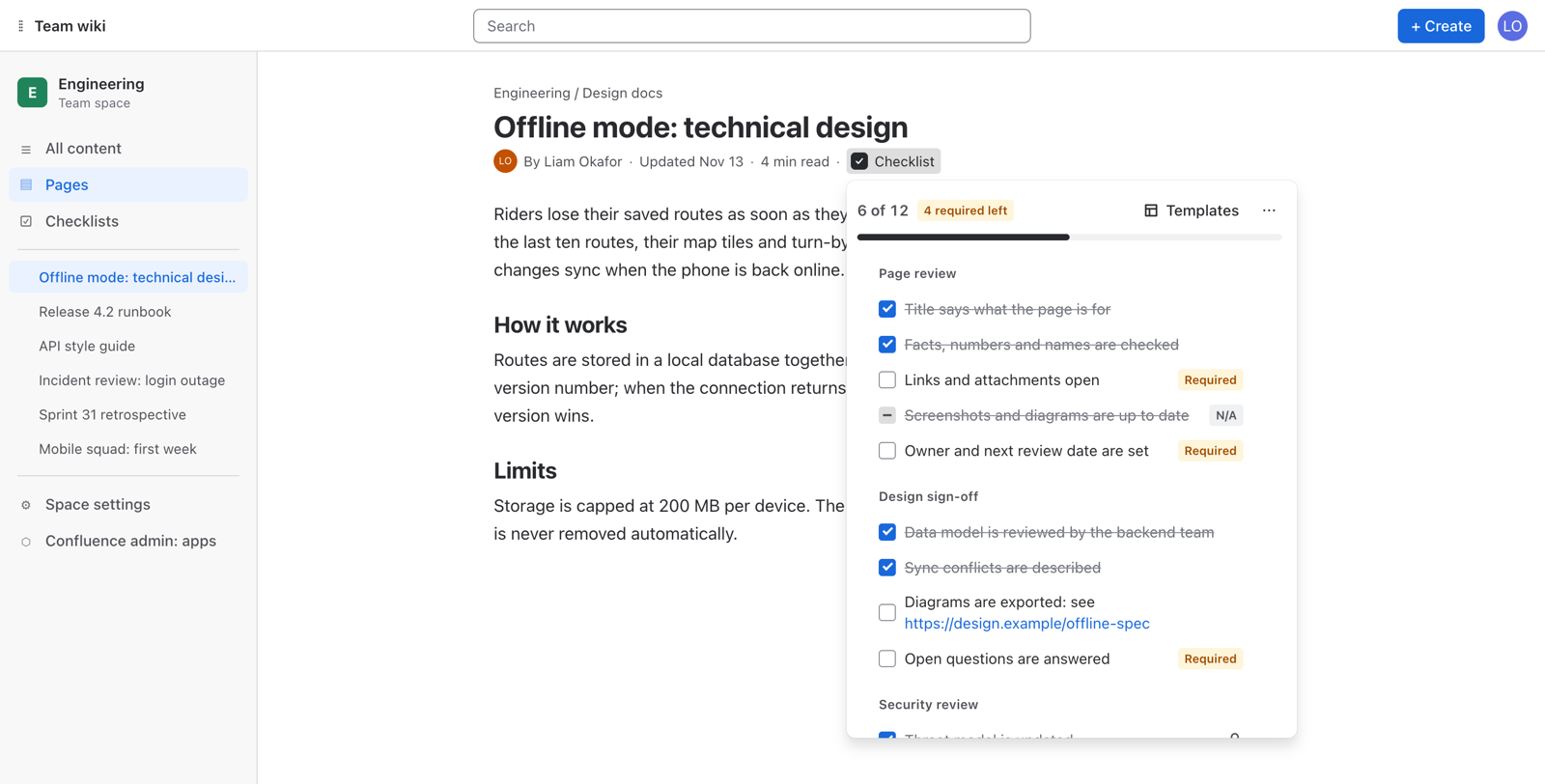
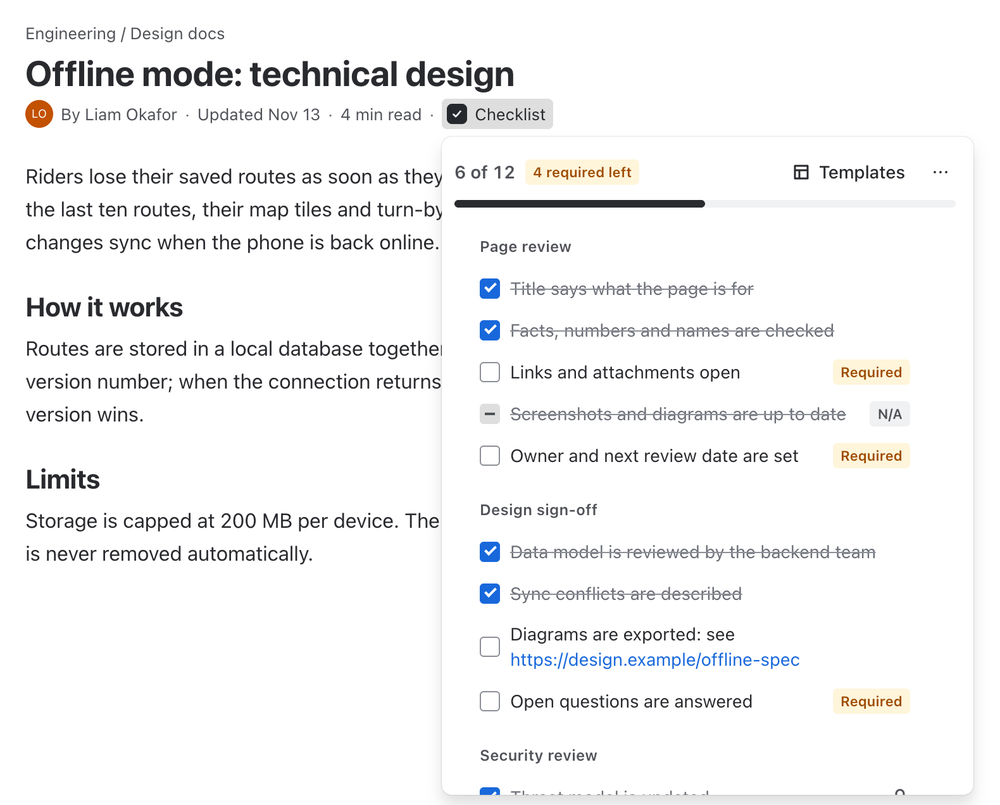
Open the checklist from the page byline and tick. The page is not edited and gets no new version.
Added by itself
Switch on automatic adding and every new page in the space starts with the right checklist. Nobody has to remember to add it.
Open steps stay visible
One page per space lists every checklist with its progress and the required steps still open.
What changes for your team
Seven things your team gets from day one, and one you never have to think about.
Repeatable work stops depending on memory
Runbooks, releases and reviews carry their own steps. Required ones are impossible to miss, and progress is visible at a glance.
Sections, required steps and “not applicable” for steps that do not fit this time
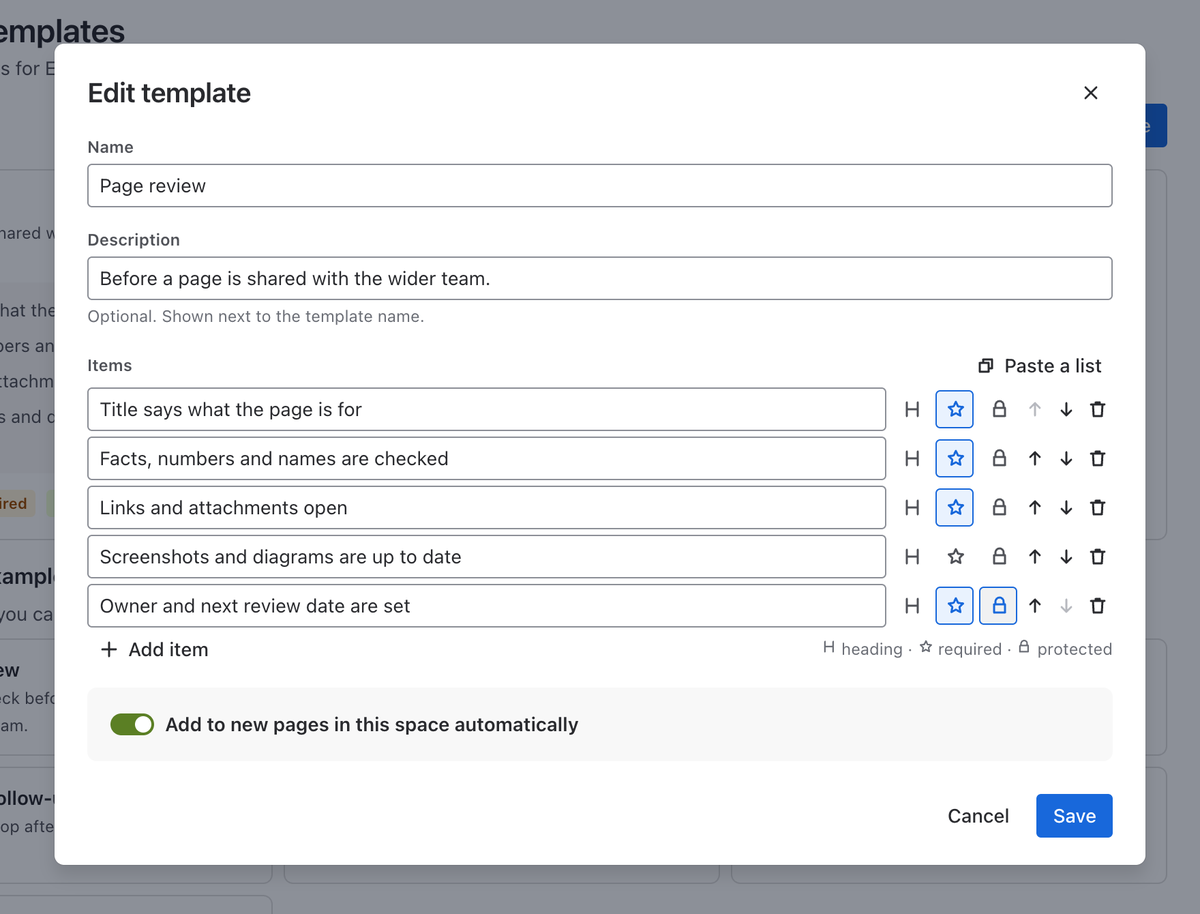
Paste a whole list to add many steps at once
Drag to reorder, rename in place, hide what is already done
Ticking does not touch the page
No edit mode and no new page version. The checklist is kept with the page, not typed into its text.
Open it from Checklist under the page title
Or show the same checklist in the page body with the “Stepwise checklist” macro, so readers tick steps right where they read
People who can only view the page see the checklist read-only
One standard per space
Write your page review, runbook or release checklist once. A template is added to every new page by itself.
One template per standard, kept per space
Switch on “Add to new pages in this space automatically” and every new page starts with it
Anyone who can edit a page can also add a template to it in one click
Required means required
Open required steps are visible on the page and in the space overview, until somebody finishes them or marks them not applicable.
Mark any step as required, in a template or right on the page
The count of required steps left sits above every checklist
“Not applicable” counts as resolved, so a step that does not fit never holds a page back
On the stepOwner and next review date are set Required
Above the checklist6 of 12 4 required left
In the space overviewWaiting on required items 5 Complete 1
The exact words people see in Confluence.
Find unfinished pages
A space overview and plain CQL fields show what is still open, in advanced search and in any macro that takes CQL.
space = ENG and checklistRequiredOpen > 0
checklistProgress < 100
checklistOpenItems = 0 and checklistItems > 0
Feels like Confluence
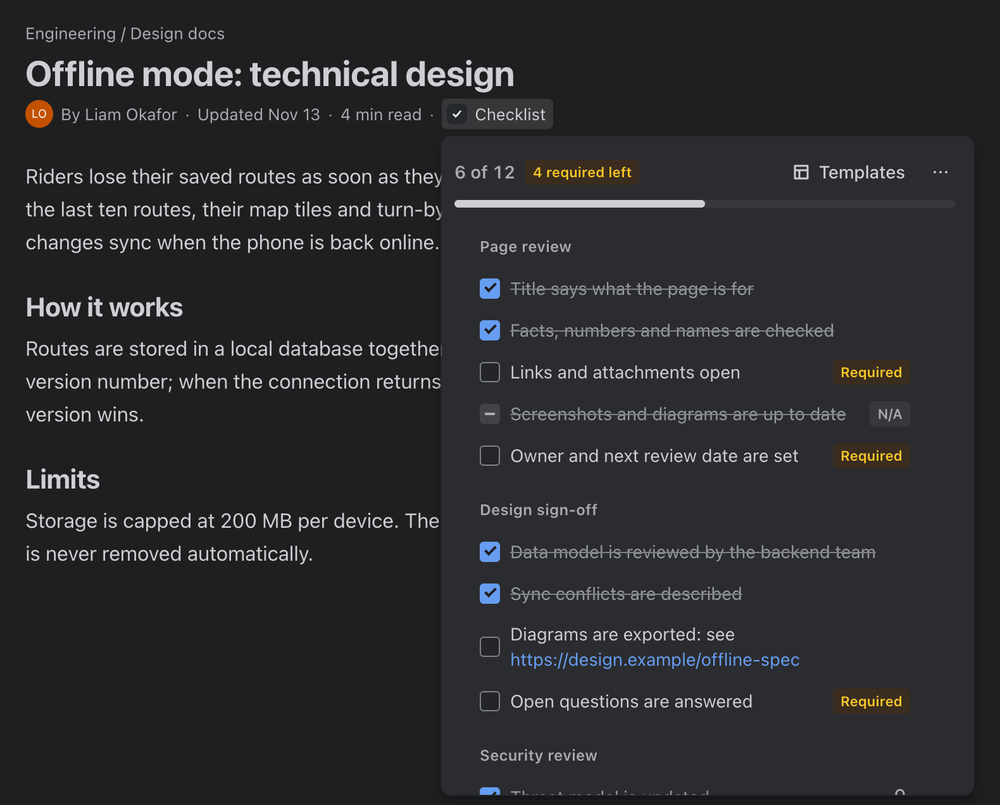
Native look in light and dark theme, keyboard friendly, fast to load. It follows each person’s Confluence theme automatically.
Reorder with Alt + ↑ / ↓, rename with Enter
The byline and the macro show one and the same checklist
Copy a checklist as text, hide what is done, or reopen all steps at once
Set up in minutes
Start from seven ready-made templates and adjust them to your team before saving.
Page review, Runbook, New hire onboarding, Meeting follow-up
Definition of Done, Release checklist, Code review
Or paste a list you already have: one line per step
Roll out in four steps
Checklist, macro, templates, CQL. Each step is useful on its own.
Open the checklist of a page
On any page, choose Checklist under the page title. Add steps or start from a template: no need to edit the page.
Show it inside the page
While editing a page, type /Stepwise checklist and insert the macro. It shows the same checklist in the page body.
Create templates per space
Space admins open Space settings → Integrations → Checklist templates and turn on automatic adding for new pages.
Find pages by checklist state
Use checklistProgress, checklistRequiredOpen and two more fields in advanced search and in any macro that takes CQL.
Runs entirely on Atlassian
Your data stays in Atlassian
Checklists are stored inside the pages themselves and templates in Atlassian-hosted app storage. Nothing is sent to any other server, and the data follows your Confluence data residency.
A checklist moves and gets deleted together with its page.
No external servers
No copies elsewhere, no analytics, no third parties.
Confluence permissions apply
Whoever can edit the page can edit its checklist. Whoever can only view it sees it read-only.
No names, no emails
The app keeps checklist text, states and completion times. It does not record who ticked what.
Every permission has a reason
read:page:confluence and write:page:confluence to read and save the checklist of a page, search:confluence to fill the Checklists page of a space, storage:app to keep templates in Atlassian-hosted storage. The security page lists all seven.
Premium
For teams that run the same standards across many spaces.
Shared library
One Definition of Done, security review or release checklist for every space, managed in one place.
Protected items
Mark template steps that nobody can rename or remove inside a page.
Insights
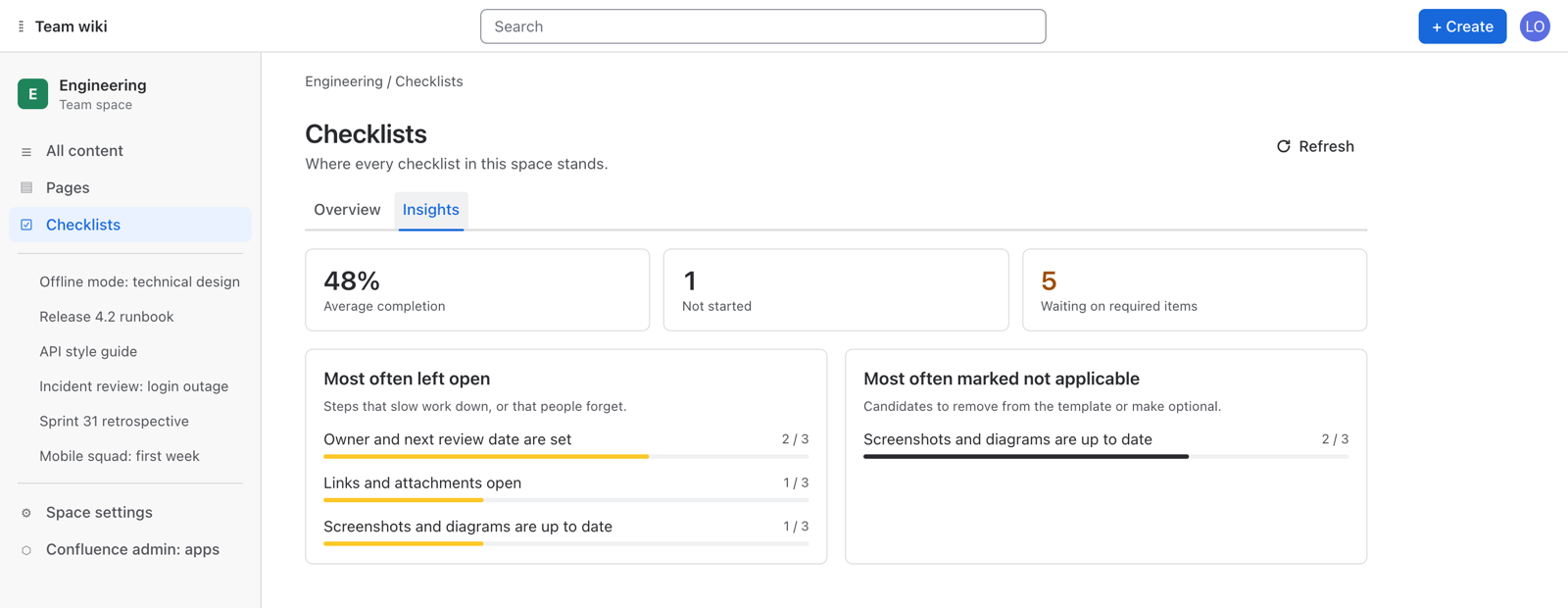
See which steps stay open and which get skipped across a space, so you can fix the process, not chase people.
Questions and answers
How is this different from Confluence tasks?
Tasks are checkboxes typed into the page text. Stepwise adds reusable templates, required steps, “not applicable”, progress, automatic adding to new pages and an overview of the whole space. Ticking a step does not edit the page.
Where are checklists stored?
With the page itself, as a Confluence content property. They move and get deleted together with the page. Templates are kept in Atlassian-hosted app storage. Nothing leaves Atlassian.
Who can edit a checklist?
Anyone who can edit the page. People who can only view the page see the checklist read-only.
Who can manage templates?
Space admins manage the templates of their space, in Space settings → Integrations → Checklist templates. Confluence admins manage the shared library.
How do I show the checklist inside the page?
Insert the “Stepwise checklist” macro. It shows the same checklist as the byline, so readers see it in place. The docs show how it looks in the editor and on the published page.
How do I search by checklist state?
Use checklistProgress, checklistItems, checklistOpenItems and checklistRequiredOpen in CQL, for example space = ENG and checklistRequiredOpen > 0.
Is there a limit on checklist size?
150 steps per page and 80 steps per template, which fits the size Confluence allows for one property.
Does it work on blog posts?
Checklists are available on pages. Blog posts are on the roadmap.
Does it work with the Jira version?
They are separate apps with the same checklist experience. Each is installed on its own and keeps its own templates. See Stepwise Checklists for Jira.
Does it support dark theme?
Yes, it follows each person’s Confluence theme automatically.
What happens to my data if I uninstall?
Templates are removed with the app. Checklists remain with the pages as content properties; reinstalling the app shows them again.
Also for Jira
The same checklist inside every Jira work item
Stepwise Checklists for Jira brings the same sections, required steps and templates to stories, bugs and releases, and can hold work on a workflow transition until the required steps are done. It is a separate app with its own templates.