Documentation
Stepwise Checklists for Confluence: user guide
Everything the app does, in the order you will meet it: the checklist of a page, the macro, templates, the Checklists page of a space, search, and the details admins ask about.
On this page
Getting started
Stepwise Checklists is a Confluence Cloud app. A Confluence admin installs it from the Atlassian Marketplace and approves its permissions (they are explained under Permissions). After that there is nothing to switch on: the app is available on every page, in every space.
It is a separate app from Stepwise Checklists for Jira: each is installed on its own and keeps its own templates.
Confluence admins find a short start guide inside Confluence as well, in Confluence settings under Stepwise Checklists.
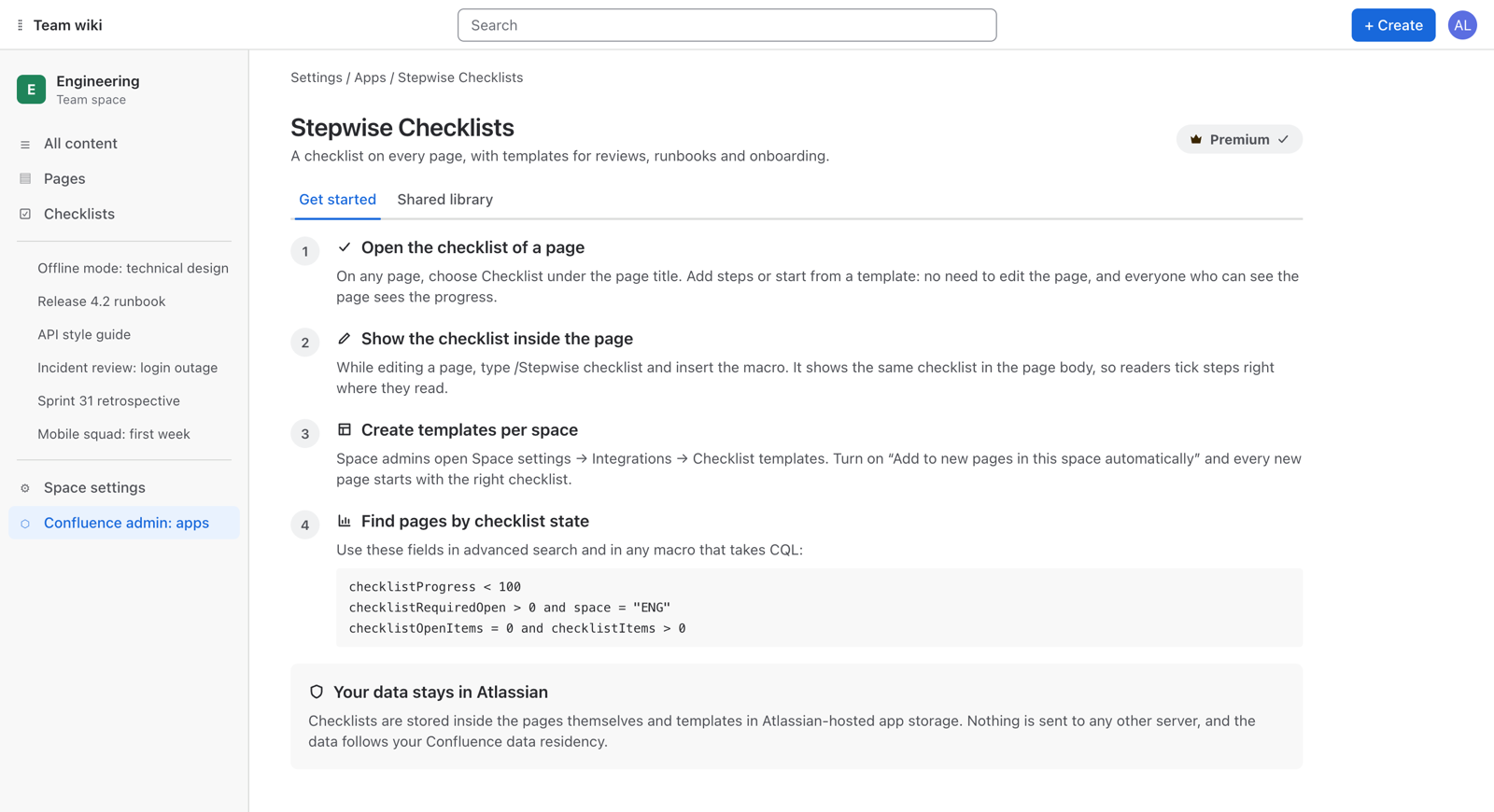
Open the checklist of a page
- Open any page.
- Choose Checklist under the page title, in the line with the author and the date.
- The checklist of the page opens in a popup.
There is nothing to add page by page: Checklist is there on every page, and every page has one checklist. You do not need to edit the page to use it.
Checklists are available on pages. Blog posts do not have one yet.
Your first checklist
An empty checklist says “No checklist yet” and offers two ways to begin:
- Type the first step into the field What needs to be done? and press Enter. Keep typing: every Enter adds the next step.
- Or click one of the template buttons to start from a checklist your space admin has prepared.
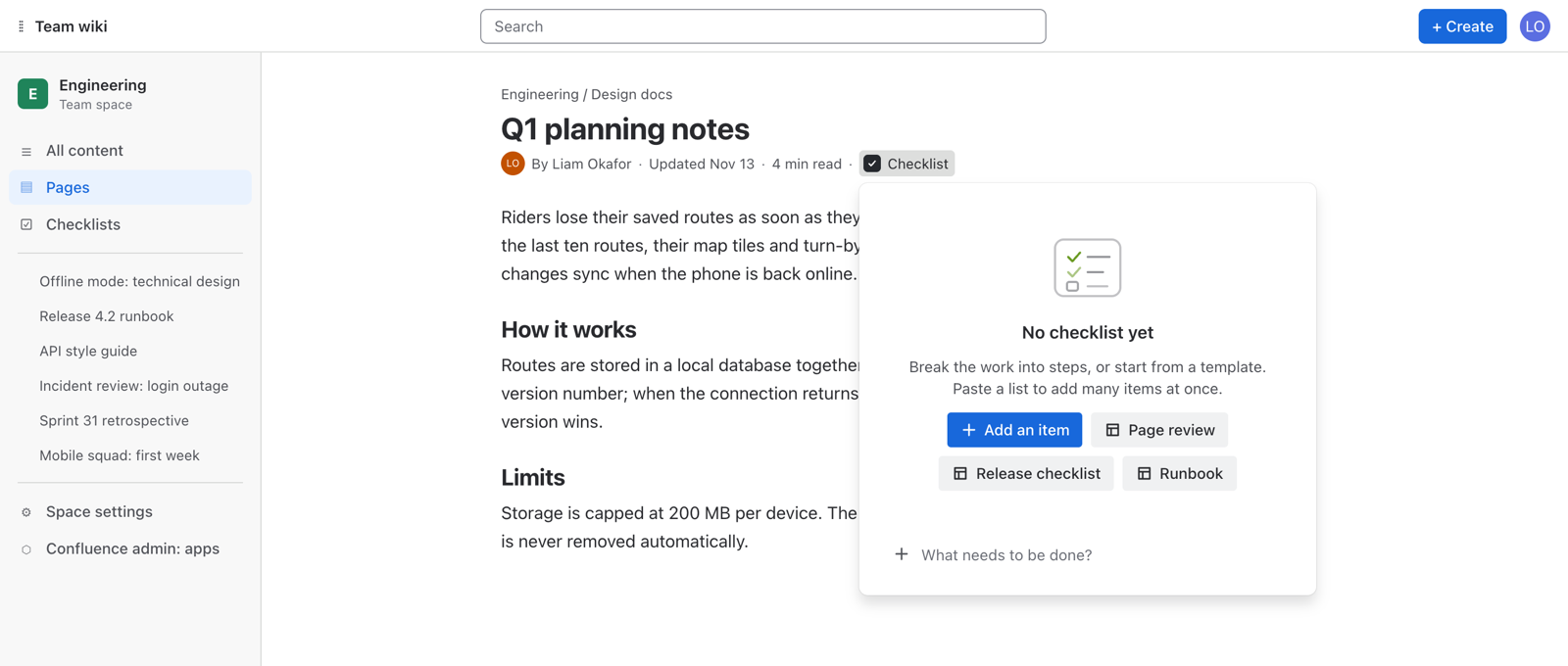
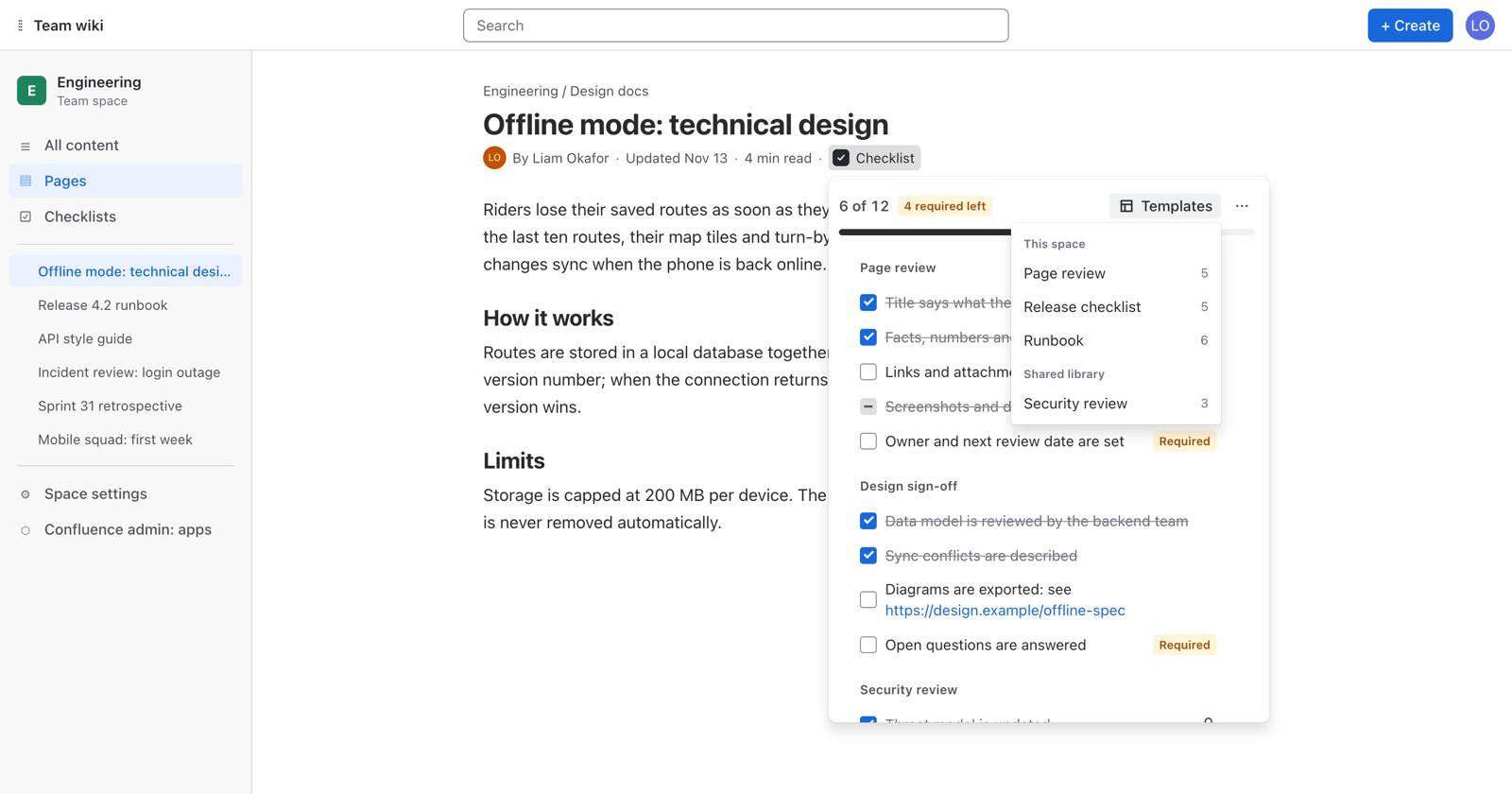
The line above the checklist shows progress, for example “6 of 12”, and how many required steps are left. When nothing is open any more it says “Complete”.
Working with a checklist

Steps
| To do this | Do this |
|---|---|
| Add a step | Type into Add an item at the bottom of the checklist and press Enter. |
| Add a section heading | Start the line with #, for example # Security review. Headings group steps and are not counted in progress. |
| Add a required step | Start the line with !, for example ! Links and attachments open. |
| Add many steps at once | Paste a list into the add field: one line becomes one step. See Paste a list. |
| Complete a step | Tick its checkbox. Tick again to reopen it. |
| Skip a step that does not fit | Open the step’s actions menu and choose Mark as not applicable. The step gets an N/A tag and counts as resolved. Reopen brings it back. |
| Make a step required or optional | Actions menu → Make required or Make optional. Required steps carry a Required tag. |
| Rename a step | Click its text, or focus the step and press Enter or F2. Enter saves, Esc cancels. |
| Turn a step into a heading, or back | Actions menu → Turn into a heading or Turn into an item. |
| Reorder | Drag the step by its handle, press Alt + ↑ or Alt + ↓, or use Move up and Move down in the actions menu. |
| Delete a step | Actions menu → Delete. |
A step can hold up to 500 characters. Web addresses in the text become links.
Ticking does not edit the page
The checklist is kept with the page, not typed into its text. Adding, ticking and reordering steps does not open the editor and does not create a new page version. Everyone who can see the page sees the progress.
Paste a list
Copy a list from a document, a chat or a spreadsheet column and paste it into the add field. Every line becomes a step. Two marks at the start of a line are understood:
# Before you start
! Access and permissions are confirmed
! Rollback steps are written down
People affected are informed
This adds one heading, two required steps and one ordinary step. Bullets, numbering and checkbox marks at the start of a line (-, *, 1., [ ], [x]) are dropped, so a list copied from a document or from Markdown comes in clean.
Actions for the whole checklist
The Templates button adds a template to the page. The More checklist actions menu next to it holds the rest:
- Hide completed items / Show completed items
- Keeps only the open steps on screen. A line tells how many are hidden and brings them back with one click.
- Copy as text
- Copies the checklist to the clipboard, ready to paste into a comment, a message or the checklist of another page.
- Reopen all items
- Every step goes back to open. The steps themselves stay.
- Remove checklist
- Removes all steps from this page. Protected steps that came from a template stay.
Templates are created in Space settings, not from a page: see Create a template.
How progress is counted
Progress is the share of steps that are resolved: done or marked not applicable. Headings are not counted. A checklist is complete when it has at least one step and none of them is open.
Keyboard
| Keys | What happens |
|---|---|
| Enter in the add field | Adds the step and keeps the field ready for the next one |
| Esc in the add field | Clears the field |
| Enter or F2 on a step | Starts renaming |
| Enter while renaming | Saves the new text |
| Esc while renaming | Cancels |
| Alt + ↑ / Alt + ↓ | Moves the step up or down |
| Tab / Shift + Tab | Moves between steps, tags and menus, as everywhere in Confluence |
The macro
The Stepwise checklist macro shows the checklist of a page inside the page body, so readers tick steps right where they read. It is the same checklist as the one under Checklist in the byline: a step ticked in one place is ticked in the other.
Insert the macro
- Edit the page.
- Type
/Stepwise checklistwhere the checklist should appear and insert the macro. - Publish the page.
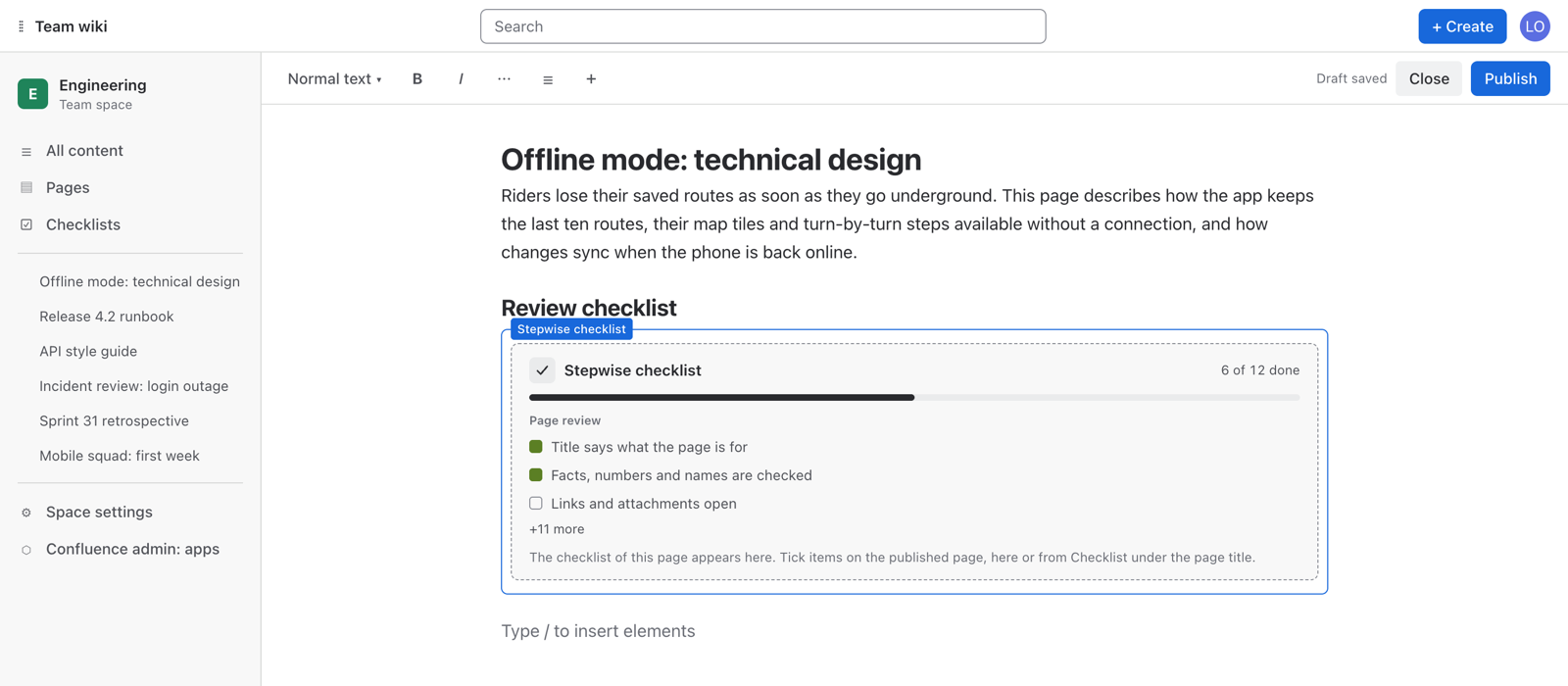
While you edit the page, the macro shows a preview: the progress, the first steps and the note “The checklist of this page appears here. Tick items on the published page, here or from Checklist under the page title.” Steps cannot be changed in the preview.
On the published page

On the published page the macro is the full checklist, with every action described under Working with a checklist. People who can only view the page see it read-only.
- The macro always shows the checklist of the page it is placed on.
- The checklist does not live in the macro. Removing the macro from the page leaves the checklist where it is, under Checklist in the byline.
- Inserting or removing the macro is a normal page edit. Ticking steps in it is not.
Templates and automatic adding
A template is a reusable checklist: your page review, runbook, onboarding or release steps. Templates belong to a space and are managed by its space admins in Space settings → Integrations → Checklist templates.

Create a template
- Open Space settings → Integrations → Checklist templates.
- Click New template, or pick one of the seven examples under Start from an example: Page review, Runbook, New hire onboarding, Meeting follow-up, Definition of Done, Release checklist, Code review. An example opens in the editor so you can adjust it before saving.
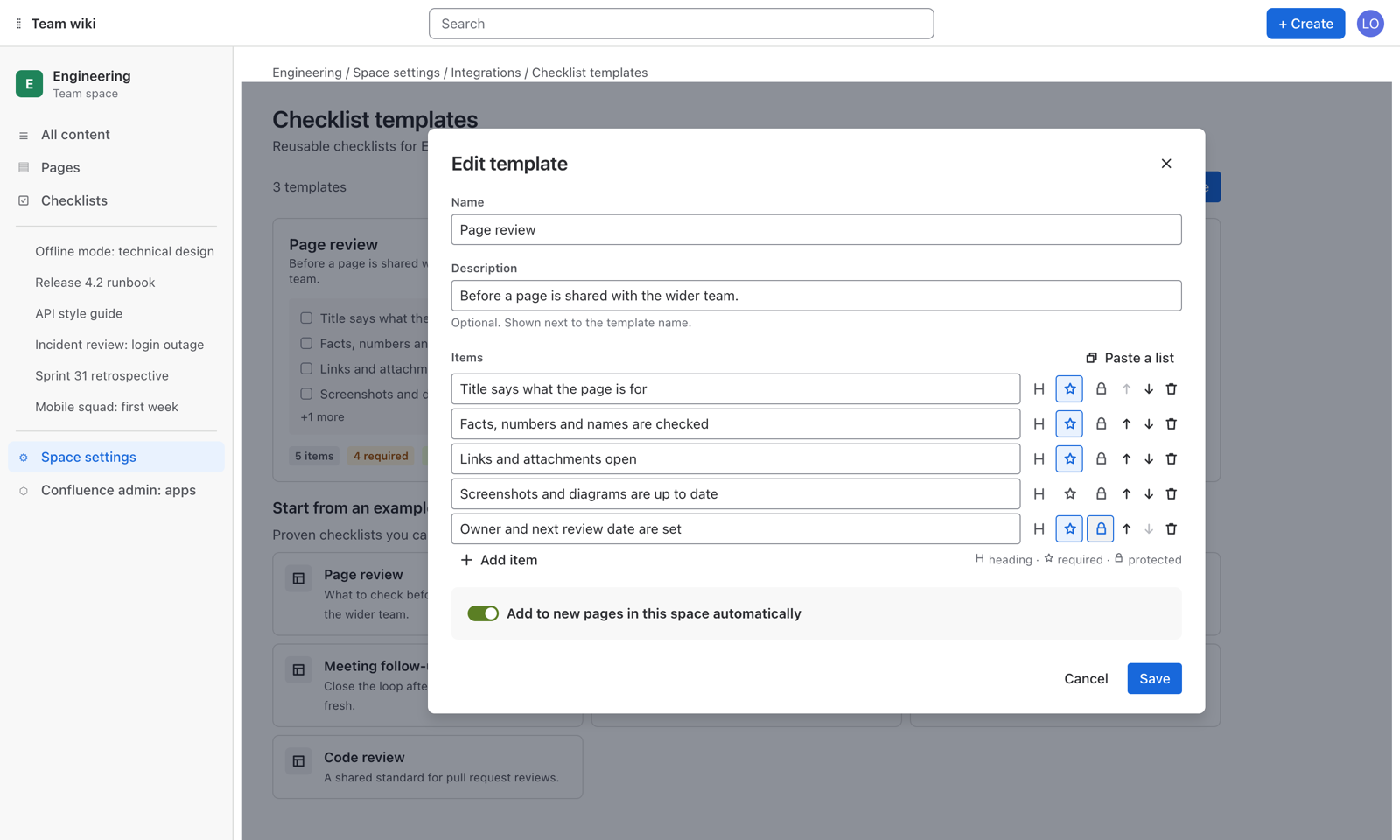
- Give it a name and, if you like, a description that is shown next to the name.
- Add the steps one by one with Add item, or use Paste a list: one line per step,
#for a heading,!for a required step. - Use the buttons at the end of each row to mark it as a section heading or as a required item, and to move or delete it.
- Click Save.
The menu on a template card lets you edit, duplicate or delete it. Deleting a template does not touch checklists that were already added to pages: they stay as they are.
Templates are created only here. To turn a checklist you already wrote on a page into a template, choose More checklist actions → Copy as text on the page and then Paste a list in the template editor: headings and required marks come along.
Add a template to a page
Anyone who can edit the page can click Templates in the checklist and pick a template. Its steps are added to the checklist. The menu lists the templates of the space under This space.
Automatic adding
A template can add itself to every new page of its space:
- Open the template in the editor.
- Switch on Add to new pages in this space automatically.
- Save.
From then on, a new page in the space starts with that checklist as soon as it is created. A few things to know:
- It applies to pages created after you switch it on. Existing pages are not changed.
- If several templates of the space are set to add automatically, all of them are added.
- Template cards show the tag “New pages” so you can see at a glance what adds itself.
- It applies to pages. Blog posts do not get a checklist.
The Checklists page
Every space gets a Checklists page in its navigation. Everyone who can see the space can open it. It shows where every checklist in the space stands.

Overview tab
- Four tiles count the pages With a checklist, In progress, Waiting on required items and Complete. Click a tile to filter the table.
- The table lists each page with its title, progress and the number of required steps left. The title opens the page.
- Refresh reloads the numbers.
- You see the pages you have access to. Pages that are restricted for you are not listed.
- The page shows up to the 200 most recently modified pages that have a checklist. For anything beyond that, use the CQL fields.
Insights tab
The second tab, Insights, is described under Premium features.
CQL reference
Every checklist publishes four numbers that Confluence indexes. Use them in advanced search and in any macro that takes CQL.
| Field | Value | Meaning |
|---|---|---|
checklistProgress | 0–100 | Percent of steps that are done or not applicable |
checklistItems | Number | Steps in the checklist (headings are not counted) |
checklistOpenItems | Number | Steps that are still open |
checklistRequiredOpen | Number | Required steps that are still open |
The fields are numbers, so they work with =, !=, >, >=, < and <=.
Examples
| Find | CQL |
|---|---|
| Pages of one space that still have required steps open | space = ENG and checklistRequiredOpen > 0 |
| Any unfinished checklist | checklistProgress < 100 |
| Checklists that are complete | checklistOpenItems = 0 and checklistItems > 0 |
| Checklists that are more than half done but not finished | checklistProgress >= 50 and checklistProgress < 100 |
| Checklists nobody has started | space = ENG and checklistProgress = 0 |
| Runbooks with open steps, by label | label = "runbook" and checklistOpenItems > 0 |
| Long checklists in one space | space = ENG and checklistItems > 20 |
- Pages without a checklist have no values in these fields and are not matched by them.
- Confluence updates its search index shortly after a checklist changes. A search run in the same moment can still show the previous numbers.
- Only the four numbers are indexed. The text of the steps is not part of these fields.
spaceandlabelin the examples are Confluence’s own CQL fields; the checklist fields combine with any of them.
Premium features
Premium is the Advanced edition of Stepwise Checklists on the Atlassian Marketplace. It is meant for teams that run the same standards across many spaces, and adds three things. A Confluence admin can switch editions at any time.
Shared library
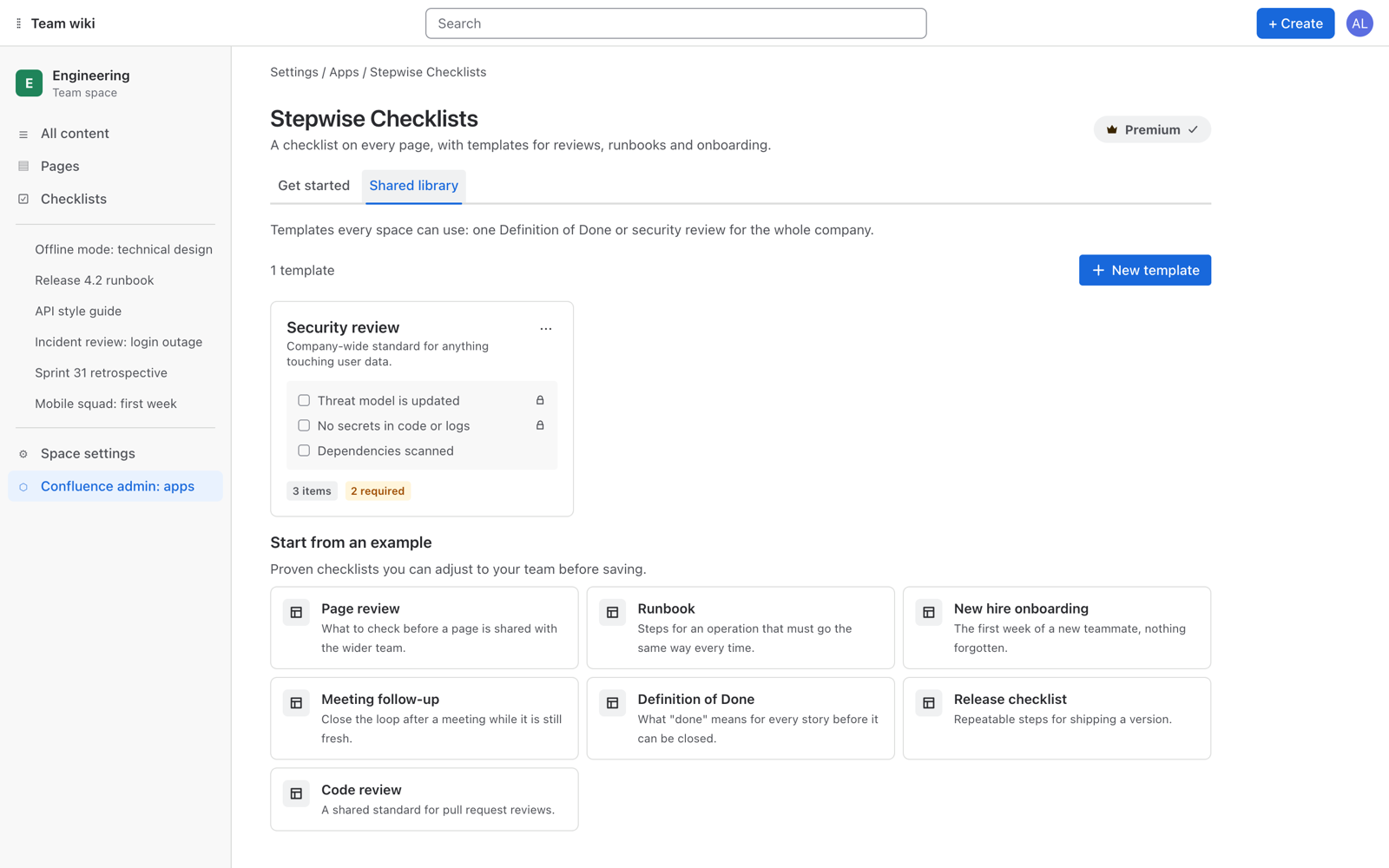
Templates that every space can use: one Definition of Done or security review for the whole company, managed in one place.
- Confluence admins manage it in Confluence settings → Stepwise Checklists → Shared library. The editor is the same as for space templates.
- Shared templates appear in the Templates menu of every page, in every space, under Shared library.
- A shared template can also be set to Add to new pages in every space automatically.
Protected items
In the template editor, the lock button marks a step as protected. Once that template is added to a page, a protected step cannot be renamed, removed, made optional or turned into a heading there. It shows a small lock, and Remove checklist leaves it in place. People still tick it like any other step, can mark it not applicable when it does not fit, and can move it.
Use protection for the steps that must not be edited away, such as a security or compliance check, and leave the rest of the checklist flexible.
Insights
The Insights tab of the Checklists page shows where work gets stuck in a space, so you can fix the process, not chase people.
- Tiles: Average completion, Not started, Waiting on required items.
- Most often left open: steps that slow work down, or that people forget.
- Most often marked not applicable: candidates to remove from the template or make optional.
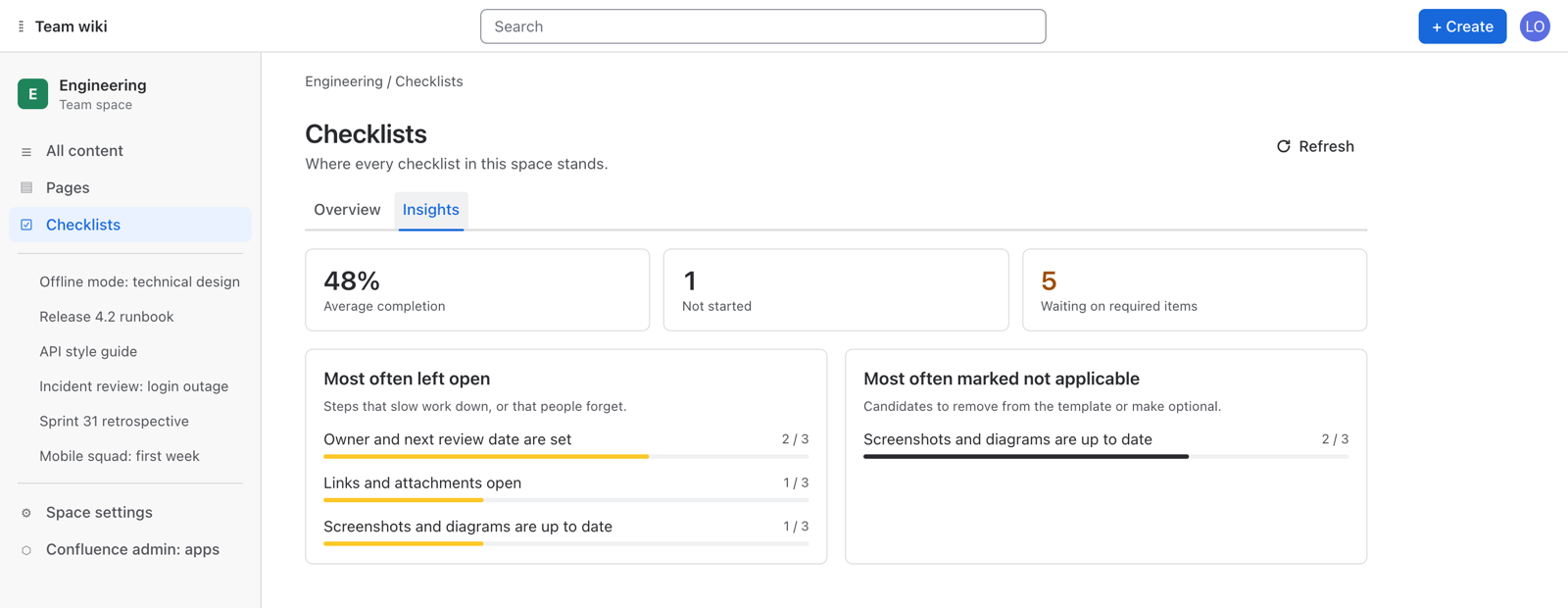
Insights are counted from the pages listed on the Overview tab.
If a site moves back to the Standard edition, shared templates are kept but no longer offered to the team, and a Confluence admin can still delete them. Protected steps that are already on pages stay as they are.
Permissions
Who can do what
The app has no permission settings of its own. It follows Confluence, page restrictions included.
| Action | Who |
|---|---|
| See a checklist | Anyone who can view the page |
| Add, tick, edit and reorder steps; add a template to a page | Anyone who can edit the page |
| Insert or remove the macro | Anyone who can edit the page, as for any other page content |
| Create, edit and delete templates of a space | Space admins, in Space settings |
| Open the Checklists page of a space | Anyone who can see the space. It lists the pages that person can view. |
| Manage the shared library | Confluence admins |
People who can view a page but not edit it see its checklist read-only.
What the app is allowed to do
When the app is installed, Confluence asks the admin to approve seven permissions:
| Permission | Why the app needs it |
|---|---|
read:page:confluence | To read the checklist of a page and what the current person may do with that page |
write:page:confluence | To save the checklist with its page |
read:space:confluence | To show the name of the space and to check whether the current person is a space admin |
read:confluence-user | Only to check whether the current person is a Confluence admin, for the shared library. Nothing from the profile is read or stored. |
search:confluence | To find the pages with a checklist for the Checklists page of a space |
read:confluence-content.summary | To learn when a page is created, so that templates can be added to it automatically |
storage:app | To keep templates in Atlassian-hosted app storage |
Limits
| What | Limit |
|---|---|
| Checklists on one page | One |
| Steps on one page, headings included | 150 |
| Length of one step | 500 characters |
| Steps in one template | 80 |
| Templates in one space | 50 |
| Templates in the shared library | 100 |
| Template name | 80 characters |
| Template description | 300 characters |
| Pages listed on the Checklists page | The 200 most recently modified |
| Content types | Pages. Blog posts are not supported yet. |
The step limits exist because a checklist is stored in one Confluence content property, and Confluence caps the size of a property. When a checklist is full, it says so and asks you to remove a step before adding another.
Data and security
- A checklist is stored with its page, as the Confluence content property
stepwise_checklist. It moves and gets deleted together with the page. - Templates are stored in Atlassian-hosted app storage (Forge storage).
- Nothing is sent to any other server. There are no external services, no analytics and no third parties.
- The app stores checklist text, the state of each step and the time a step was completed. It does not store account ids, names or emails.
- The data follows your Confluence data residency.
- If the app is uninstalled, templates are removed with it. Checklists remain with the pages as content properties, and reinstalling the app shows them again.
More detail, including an architecture diagram: Security and data. Legal wording: Privacy policy.
Troubleshooting
- I do not see Checklist under the page title
- It is shown on pages, in the line with the author and the date. If it is missing on every page, ask a Confluence admin whether the app is installed on the site.
- “Checklists are available on pages.”
- You opened the checklist or the macro on a blog post. Checklists work on pages only for now.
- The checklist is read-only
- You can view the page but are not allowed to edit it, for example because of a page restriction. If the checklist shows the note “Checklists are read-only” for everybody, the app’s licence on the site is not active: everything stays visible, and a Confluence admin can restore editing under Confluence’s app management.
- I cannot tick steps in the macro
- In the editor the macro is a preview. Publish or close the editor and tick on the published page, in the macro or from Checklist under the page title.
- I cannot rename or delete one of the steps
- A step with a lock icon is protected: it comes from a template whose owner decided it must stay as written. You can still tick it or mark it not applicable.
- I cannot add another step
- A checklist holds 150 steps. Remove one to add another, or split the work across several pages.
- A template was not added to a new page
- Check that Add to new pages in this space automatically is switched on in the template, that the page is in that space, that it is a page and not a blog post, and that it was created after you saved the template. The checklist is added moments after creation: reload the page if you opened it immediately.
- The Templates menu says “No templates yet”
- The space has no templates. A space admin can create them in Space settings → Integrations → Checklist templates.
- I cannot find “Save as template” on a page
- Templates are created in Space settings only. Use Copy as text on the page and Paste a list in the template editor to carry a checklist over.
- A page is missing from the Checklists page
- The Checklists page shows up to the 200 most recently modified pages with a checklist, and only pages you can view. A checklist that was created a moment ago appears once Confluence has indexed it: click Refresh.
- A CQL search with a checklist field returns nothing
- Pages without a checklist are not matched by these fields. Check the spelling of the field (
checklistProgress,checklistItems,checklistOpenItems,checklistRequiredOpen) and give Confluence a moment to index a checklist that was just changed. - “Copying is blocked by the browser”
- Your browser did not allow access to the clipboard. Allow clipboard access for your Confluence site in the browser settings and try Copy as text again.
- “The checklist could not be loaded”
- Click Try again or reload the page. If it keeps happening, write to support and tell us what you see.
On the roadmap
These are not in the app today. We list them so that you know what to expect and what not to look for yet. There are no dates attached.
- Progress shown right in the page byline
- Checklists on blog posts
- Rules that add a template by label or by parent page
- Page approvals with named reviewers
- Translations of the interface (it is in English today; checklist text can be in any language)
Missing something else? Tell us.